Last Updated: June 22, 2026
Microsoft Office 2021 remains one of the most popular productivity suites used by students, professionals, business owners, and home users. Whether you are creating documents in Word, managing data in Excel, designing presentations in PowerPoint, or organizing emails in Outlook, Office 2021 provides everything you need in one package.
If you are new to Microsoft Office 2021, this beginner-friendly guide will walk you through the essential applications, setup process, activation methods, features, and troubleshooting tips. By the end of this tutorial, you’ll have a solid understanding of how to use Office 2021 effectively.
What Is Microsoft Office 2021?
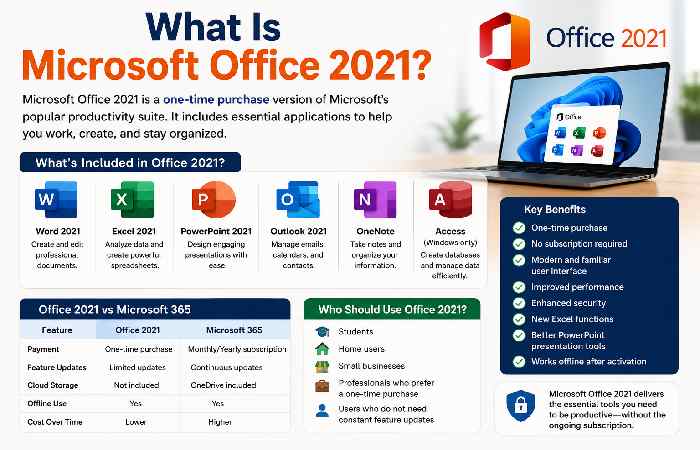
Microsoft Office 2021 is the standalone version of Microsoft’s productivity software suite. Unlike Microsoft 365, which requires a subscription, Office 2021 is available through a one-time purchase.
The suite includes:
- Microsoft Word 2021
- Microsoft Excel 2021
- Microsoft PowerPoint 2021
- Microsoft Outlook 2021
- OneNote
- Access (Windows only in certain editions)
Office 2021 is ideal for users who prefer a one-time payment rather than recurring subscription fees.
System Requirements for Office 2021
Before installing Office 2021, ensure your computer meets the minimum requirements.
Windows Requirements
- Windows 10 or Windows 11
- 4 GB RAM minimum
- 4 GB available disk space
- Internet connection for activation
Mac Requirements
- Recent macOS version
- 4 GB RAM minimum
- Sufficient storage space
- Internet connection
Meeting these requirements ensures smooth performance and compatibility.
How to Activate Office 2021 Legally
One of the most common questions from beginners is how to activate Office 2021 legally.
Step 1: Purchase a Genuine License
Always buy Office 2021 from Microsoft or an authorized retailer.
Step 2: Sign In to Your Microsoft Account
Open any Office application and sign in with the Microsoft account linked to your license.
Step 3: Enter Product Key
If prompted:
- Open Word or Excel.
- Select Activate Product.
- Enter your 25-character product key.
- Complete the activation process.
Step 4: Verify Activation
Go to:
File → Account
You should see:
Product Activated
Avoid unofficial activators and cracked versions because they can create security risks and licensing issues.
Microsoft Word 2021 Tutorial for Beginners
Microsoft Word is the world’s most widely used word-processing application.
Creating Your First Document
- Open Word 2021.
- Select Blank Document.
- Start typing your content.
- Save the file using Ctrl + S.
Essential Word Features
Formatting Text
Use:
- Bold
- Italic
- Underline
- Font styles
- Text colors
Working with Paragraphs
You can:
- Align text
- Create bullet lists
- Add numbered lists
- Adjust spacing
Inserting Images
- Click Insert.
- Choose Pictures.
- Select an image.
- Resize and position it.
Saving as PDF
- Click File.
- Select Save As.
- Choose PDF format.
This feature is useful for resumes, reports, and business documents.
Excel 2021 Beginner Guide
Excel 2021 is designed for organizing, calculating, and analyzing data.
Understanding Worksheets
An Excel file is called a workbook.
Each workbook contains:
- Rows
- Columns
- Cells
Every cell has a unique address such as A1 or B5.
Entering Data
Simply click a cell and type:
- Numbers
- Text
- Dates
Press Enter to move to the next cell.
Basic Excel Formulas
Sum Formula
=SUM(A1:A10)Adds all numbers between A1 and A10.
Average Formula
=AVERAGE(A1:A10)Calculates the average value.
Maximum Value
=MAX(A1:A10)Returns the highest number.
Minimum Value
=MIN(A1:A10)Returns the lowest number.
Creating Charts
- Select your data.
- Click Insert.
- Choose a chart type.
- Customize titles and labels.
Charts make data easier to understand and present.
PowerPoint 2021 Tutorial
PowerPoint helps create professional presentations.
Creating a Presentation
- Open PowerPoint.
- Select a template.
- Add slides.
- Insert content.
Adding Visual Elements
You can insert:
- Images
- Icons
- Videos
- SmartArt
- Charts
Visual content improves audience engagement.
Applying Themes
Themes instantly enhance presentation design.
To apply a theme:
- Open the Design tab.
- Browse available themes.
- Select your preferred style.
Running a Slide Show
Press:
F5
This launches your presentation in full-screen mode.
Outlook 2021 Setup Guide
Outlook helps manage emails, calendars, contacts, and tasks.
Adding Your Email Account
- Open Outlook.
- Enter your email address.
- Enter your password.
- Complete setup.
Outlook supports:
- Gmail
- Outlook.com
- Yahoo Mail
- Business email accounts
Organizing Emails
Create folders for:
- Work
- Personal
- Projects
- Clients
This improves productivity and reduces inbox clutter.
Calendar Management
Use Outlook Calendar to:
- Schedule meetings
- Set reminders
- Manage appointments
- Track deadlines
Best Office 2021 Features
Microsoft introduced several improvements in Office 2021.
Modern Interface
The updated design looks cleaner and more modern.
Improved Performance
Applications launch faster and run more smoothly.
Better Collaboration
Although not as cloud-focused as Microsoft 365, Office 2021 offers improved file sharing capabilities.
New Excel Functions
Excel includes modern functions for data analysis and business reporting.
Enhanced PowerPoint Tools
PowerPoint now includes better recording and presentation features.
Updated Security
Office 2021 includes improved protection against malware and phishing attacks.
Office 2021 vs Microsoft 365
| Feature | Office 2021 | Microsoft 365 |
|---|---|---|
| Payment | One-time | Subscription |
| Updates | Security updates | Continuous feature updates |
| Cloud Storage | Limited | Included |
| Teams Integration | Basic | Advanced |
| Cost Over Time | Lower | Higher |
Choose Office 2021 if you prefer a one-time purchase. Choose Microsoft 365 if you want continuous feature updates and cloud services.
Common Office 2021 Problems and Fixes
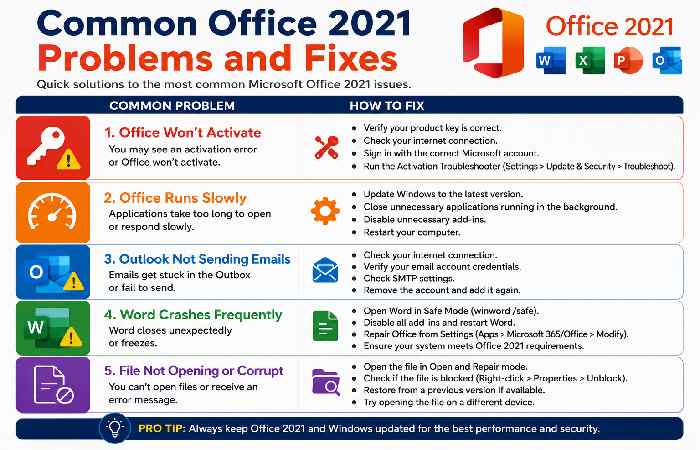
Office Won’t Activate
Solution
- Verify product key.
- Check internet connection.
- Sign into the correct Microsoft account.
Office Runs Slowly
Solution
- Update Windows.
- Disable unnecessary add-ins.
- Restart your computer.
Outlook Not Sending Emails
Solution
- Verify email credentials.
- Check SMTP settings.
- Remove and re-add the account.
Word Crashes Frequently
Solution
- Open Safe Mode.
- Disable add-ins.
- Repair Office installation.
Productivity Tips for Beginners
Learn Keyboard Shortcuts
Useful shortcuts include:
| Shortcut | Function |
|---|---|
| Ctrl + C | Copy |
| Ctrl + V | Paste |
| Ctrl + Z | Undo |
| Ctrl + S | Save |
| Ctrl + P |
Use Templates
Templates save time when creating:
- Reports
- Resumes
- Invoices
- Presentations
Enable AutoSave Alternatives
Although Office 2021 doesn’t provide full Microsoft 365 AutoSave functionality, frequent manual saves protect your work.
Organize Files Properly
Create folders for:
- Documents
- Projects
- Presentations
- Financial records
Good organization improves efficiency.
Frequently Asked Questions
Is Microsoft Office 2021 good for beginners?
Yes. Office 2021 is user-friendly and suitable for students, professionals, and home users.Can I use Office 2021 without the internet?
Yes. After activation, most applications work offline.
Is Office 2021 a one-time purchase?
Yes. Office 2021 requires a single payment and does not require a subscription.
Does Office 2021 include Outlook?
Yes, depending on the edition purchased.
Can I upgrade from Office 2019?
Yes. Office 2021 can be installed as an upgrade from previous versions.
Is Microsoft 365 better than Office 2021?
It depends on your needs. Microsoft 365 offers ongoing updates and cloud features, while Office 2021 is a one-time purchase.
Conclusion
Microsoft Office 2021 remains an excellent productivity suite for beginners who want powerful software without a monthly subscription. By learning Word, Excel, PowerPoint, and Outlook, users can handle everyday tasks, improve workplace productivity, and create professional-quality documents, spreadsheets, presentations, and emails.
Start with the basics outlined in this guide, practice regularly, and gradually explore advanced features. With consistent use, Office 2021 can become one of the most valuable tools in your personal and professional workflow.