Looking for a way to update all apps on your Android phone? It’s easy to update multiple apps at once in the Google Play Store. Updating your apps means you’ll get new features, bug fixes, performance enhancements, and security updates.
Whether this is your first time updating Android apps or you just want an easier way to do it, here are the easiest methods to update all Android apps.
How to Update All Android Apps
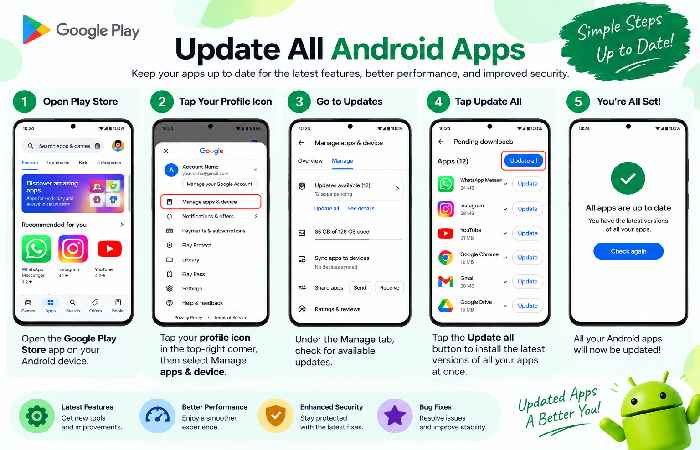
The simplest way is by the Google Play Store. Step 1: Open the Google Play Store on your Android phone. Step 2: Tap the profile picture icon at the top-right of the screen.
Step 3: Tap the Manage apps & device menu.
Step 4: Tap Updates available, and then tap See details. Step 5: Tap Update all. Your phone will now download and install available app updates. The menu options may slightly differ depending on the Android phone and version, Google Play Store version, or Android OS version.
Update All Android Apps Automatically
If you prefer not to update your apps on your own, there is an option for auto-updates.
Head to:
Play Store Profile picture Settings Network preferences Auto-update apps
and then select the option you prefer. One great choice is Wi-Fi only if you want your updates to happen without using your mobile data.
Auto-updating apps on your device is very handy because it means your apps can stay up-to-date without even having to check the Play Store.
Update All Apps vs. Update One App
| Update Method | Best For | Main Benefit |
|---|---|---|
| Update all | Multiple apps | Saves time |
| Update one app | A specific app | Gives you more control |
| Automatic updates | Hands-off maintenance | Keeps apps updated automatically |
If you have several pending updates, Update all is usually the quickest option. If only one app is causing problems or you need its latest version immediately, updating that individual app may be more practical.
Tips for Updating Android Apps Safely
Before updating a large number of apps, consider these simple tips:
- Use a reliable Wi-Fi connection when possible.
- Make sure your phone has enough storage space.
- Keep your device charged or connected to a charger.
- Download apps and updates through the official Google Play Store.
- Avoid interrupting an update while it is installing.
These steps can make the update process smoother and reduce common problems.
What If Android Apps Won’t Update?
If your apps are stuck or refuse to update, first check your internet connection and available storage. You can also close and reopen the Play Store and restart your phone.
If only one particular app will not update, check whether your device is compatible with the latest version and whether the app has any specific requirements.
For persistent Play Store problems, checking your Google account and Play Store settings can also help identify the cause.
Frequently Asked Questions
Can I update all Android apps at once?
Yes. Open Google Play Store, navigate to Manage apps & device, then tap See details, and hit Update all when the updates are ready.
Should Android apps update automatically?
Automatic updates are easy for those who want all of their apps kept up-to-date without needing to look for updates themselves. Updates on Wi-Fi-only can save on mobile-data.
Q: How often should I update Android apps?
Apps don’t need to be updated daily. When automatic updates are turned on, Google Play will take care of those updates. If not, it’s not hard to keep an eye on updates by checking Manage apps & device from time to time.
Final Takeaway
Updating all Android apps may not take up much of your time. The Update all button in the Google Play Store allows you to update several apps that are awaiting updates simultaneously. Alternatively, you can set your apps to update automatically for an even less time-consuming experience. Consider what suits your data, storage and control needs.