
 Free Tech Web
-
Introduction: Understanding the Search for “Free Office”

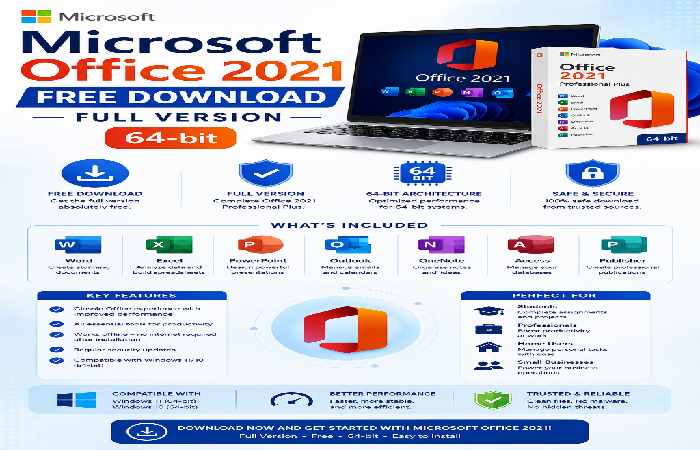
If you’ve landed on this page, you’re likely looking for a free download of Microsoft Office 2021 in 64-bit. You’re not alone—millions of users look for free Access to Microsoft’s productivity suite every month. Whether you’re a student on a budget, a professional working from home, or someone who needs to edit a document without paying $150, the desire for a free version is completely understandable.
Here’s the truth you need to know upfront: There is no legal, permanent, free full version of Microsoft Office 2021. Microsoft is a business, and Office is one of its flagship products. However, that doesn’t mean you have to pay full price or resort to dangerous pirated software.
This comprehensive guide will walk you through every legitimate way to get Office 2021 for free or at a reduced cost, show you safe installation methods for the 64-bit version, and provide excellent free alternatives that might meet all your needs. More importantly, we’ll explain why those “free download” websites you see on Google are putting your computer and personal data at risk.
By the end of this 5,000-word guide, you’ll have a clear path forward—whether that’s using Office legally for free, purchasing it smartly, or switching to an alternative that costs nothing.
-
The Reality Check: What “Free” Really Means for Office 2021
Before diving into methods, let’s clarify what “free” can legitimately mean when it comes to Microsoft Office 2021:
| Type | Legitimate? | Duration | Limitations |
| Official Microsoft Trial | Yes | 7 days | Full features, time-limited |
| Pre-installed on new PC | Yes | 30-day trial | Often requires purchase after trial |
| Through school/work | Yes | Varies | Institutional license only |
| Free alternatives (LibreOffice, etc.) | Yes | Indefinite | Different interface, some compatibility quirks |
| Cracked/pirated versions | NO | N/A | Illegal, security risks, no updates |
| “Activators” from GitHub | NO | N/A | Uses unauthorized KMS servers, violates Microsoft ToS |
Important distinction: What you see on sites like GitHub with titles claiming “Download and Activate Microsoft Office 2021 for Free (Legal)” is not actually legal. Those methods use unauthorized activation servers (KMS) and violate Microsoft’s terms of service. While technically possible, these methods can expose you to malware, keyloggers, and legal liability—especially for businesses.
-
Legal Method #1: The Official 7-Day Trial from Microsoft
The only official free trial Microsoft offers for Office 2021 is the 7-day trial of Microsoft 365, which includes all the same applications as Office 2021 Professional Plus.
How to Access the Official Trial
Microsoft doesn’t make this particularly obvious, but here’s the legitimate way:
- Visit the official Microsoft 365 website
- Look for the “Free trial” option on the subscription page
- You’ll need to provide a credit card (but you can cancel before the 7 days end without being charged)
Important Notes About the Trial
- It’s Microsoft 365, not strictly Office 2021— But the apps (Word, Excel, PowerPoint, Outlook) are essentially the same or newer
- 7 days only— After that, you need a subscription
- Full features included— No limitations during the trial period
From Microsoft’s official support: “That isn’t an official Microsoft site, so that I wouldn’t download any files from there. Office 2021 is part of Office 365, so the only way you can get a free trial is from here.”
Is the Trial Worth It?
The trial is best for:
- Testing Office 2021 before buying
- One-time urgent document editing
- Students who need Office for a single week
It’s not a solution for long-term use.
-
Legal Method #2: Download via Microsoft Account (For Existing Owners)
If you’ve already purchased Office 2021 (either as a one-time purchase or through your school/work), here’s how to download the official 64-bit version directly from Microsoft.
Step-by-Step: Download from Microsoft Account
Step 1: Go to account.microsoft.com/services and sign in with the Microsoft account linked to your Office license.
Step 2: Under “Services & Subscriptions,” find your Microsoft Office 2021 product.
Step 3: Click the “Install” button.
Step 4: To select the 64-bit version specifically, look for “Other installation options” or language/version dropdown menus.
Step 5: Choose “64-bit” from the architecture options.
Step 6: Click “Install” to download the installer.
Important Notes from Microsoft’s Official Support
“Default install is 64-bit unless Microsoft 365 or Office detects that you already have 32-bit installed. If you want to change from 32-bit to 64-bit, you need to uninstall first.”
For Work or School Accounts
If your organization manages your license:
- Sign in with your work/school account at the appropriate portal
- For China (21Vianet): partner.microsoftonline.cn
- For Germany (legacy): office.de
- For most other regions: office.com
Lost Your Product Key?
If you purchased Office 2021 but can’t find your key:
- Check your email receipt from Microsoft
- Look in your Microsoft account under “Order history”
- If purchased from a third-party retailer, contact them directly
Microsoft support clarifies: “If Office originally came pre-installed and you need to reinstall on the same or new device, you should already have a Microsoft account associated with your copy of Office.”
-
Legal Method #3: Using the Office Deployment Tool for Custom Installation
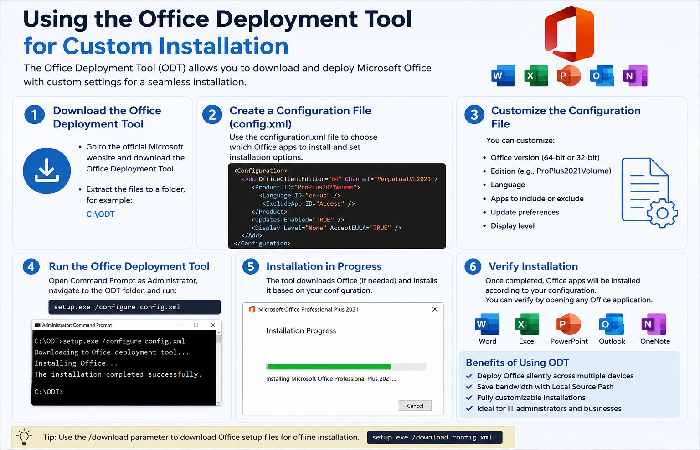
For advanced users who want full control over their Office 2021 installation (including selecting exactly which apps to install and forcing 64-bit architecture), Microsoft provides the Office Deployment Tool (ODT).
This is completely legal and official—it’s designed for IT professionals managing multiple installations, but anyone can use it.
What You Can Control with ODT
- Which Office apps install (e.g., only Word, Excel, and PowerPoint)
- 32-bit vs 64-bit architecture
- Language settings
- Update channels
- Installation source (local network or internet)
Complete Walkthrough for Office 2021 64-Bit Installation
Prerequisites: Windows 10 or Windows 11 (Office 2021 does NOT work on Windows 8.1 or earlier).
Step 1: Uninstall Previous Office Versions
Before installing Office 2021, remove any existing Office installations to prevent conflicts. Go to Control Panel > Programs and Features, and uninstall any Microsoft Office products.
Step 2: Check Your System Architecture
To verify you need 64-bit:
- Open Settings > System > About
- Look for “System type” – it should say “64-bit operating system”
- Most modern computers run 64-bit Windows
Step 3: Create an Office Configuration File
- Visit office.com(Microsoft’s official configuration tool)
- Select “Create a new configuration”
- Choose your settings:
- Architecture:Select “64-bit”
- Package type:“Office LTSC Professional Plus 2021” (LTSC = Long Term Servicing Channel, Microsoft’s term for the perpetual version)
- Applications:Uncheck anything you don’t need (Skype, OneDrive, Publisher, etc.)
- Language:Choose your preferred language
Step 4: Download the Office Deployment Tool
- Go to Microsoft’s official ODT download page
- Download the executable File
- Run it and extract to a folder on your desktop named “Office”
Step 5: Run the Installation
- Open Command Prompt as Administrator
- Navigate to your Office folder using the cdcommand
- Run: exe /configure configuration.xml
- Wait for the installation to complete (this can take 10-20 minutes depending on your internet speed)
Note: After installation, Office will run in an unactivated state. You’ll need a valid product key to activate it permanently.
Why Use the Deployment Tool?
- You want to save disk space by installing only the apps you use
- You’re reinstalling Office and want a clean, custom setup
- You’re an IT professional managing multiple computers
- Step-by-Step Guide to Installing Office 2021 64-Bit
Regardless of how you obtained your legitimate license, here’s the standard installation process:
Before You Begin
- Check Windows version:Office 2021 requires Windows 10 or Windows 11
- Uninstall old Office:Remove any previous versions to avoid conflicts
- Stable internet connection:The installer downloads several GB of files
- Sufficient disk space:At least 4-6 GB free
Installation Process
Step 1: Sign in to your Microsoft account at www.office.com
Step 2: Click “Install” next to your Office 2021 product
Step 3: If prompted, choose “64-bit” from the language/architecture options
Step 4: Run the downloaded installer file
Step 5: Follow the on-screen prompts—the installer works automatically
Step 6: Once complete, open any Office app (Word, Excel)
Step 7: Accept the license terms
Step 8: Office will activate automatically if you’re signed in with your licensed account
Activation Troubleshooting
If Office doesn’t activate automatically :
- Open any Office app
- Go to File > Account
- Click “Sign in” (use your Microsoft account)
- If that fails, click “Change Product Key” and enter your 25-character key.
- Microsoft 365 vs Office 2021: Which One Should You Choose?
This is the most important decision you’ll make. Many users don’t realize that Microsoft 365 (subscription) and Office 2021 (one-time purchase) are fundamentally different products with different long-term costs.
Quick Comparison Table
| Feature | Microsoft 365 | Office 2021 |
| Payment model | Monthly or annual subscription | One-time purchase |
| Typical cost | $70/year (Personal) or $100/year (Family) | ~$150 (Home & Student) |
| Number of devices | 5-6 devices per user | 1 PC or Mac |
| Updates | Continuous new features | Security updates only |
| Support lifecycle | As long as you subscribe | Mainstream support ended October 2026 |
| OneDrive storage | 1 TB included | 5 GB free (basic) |
| AI features (Copilot) | Yes (with paid add-on) | No |
| Offline Access | Yes | Yes |
Detailed Analysis
Office 2021: Best for Single-Device Users
Pros:
- Pay once, own forever (for that version)
- No recurring charges
- Full offline functionality
- Predictable, stable feature set
Cons:
- Only works on one computer
- No new features after purchase
- Support ends eventually (Office 2021 support ends October 13, 2026)
According to PC Tech Magazine: “Office 2021 is Microsoft’s current one-time purchase option. Pay once and use it on one machine… For someone who works on one machine, does not need the latest features the moment they drop, and wants to pay once, Office 2021 is the practical call.”
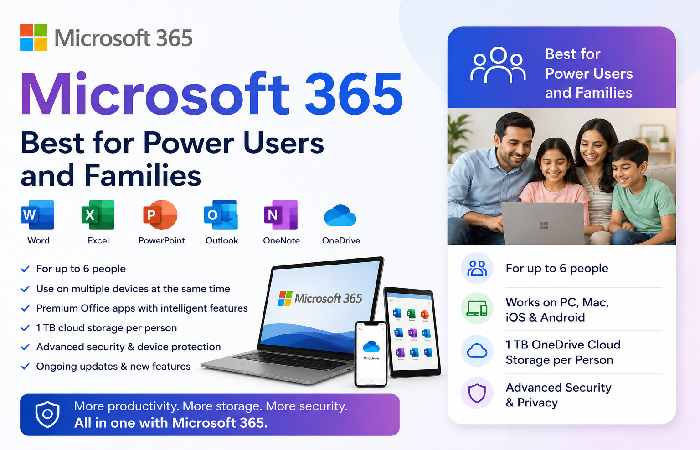
Microsoft 365: Best for Power Users and Families
Pros:
- Always up-to-date with latest features
- Install on up to 5-6 devices
- 1 TB cloud storage per user
- Access to AI-powered features (Copilot)
- Works on PC, Mac, tablet, and phone
Cons:
- You never stop paying
- More expensive over 5+ years ($350+ vs. $150 one-time)
- Requires internet connection every 30 days to verify subscription
The Cost Calculation (5-Year View)
- Office 2021:$150 total
- Microsoft 365 Personal:$70 × 5 = $350 total
- Microsoft 365 Family (shared among 6 people):$100 × 5 ÷ 6 = ~$83 per person
As one analysis notes: “Five years of 365 costs $350. If you are on one machine the whole time and have no interest in new features, the one-time purchase is less expensive. On the other hand, if you work across more than one device or you want the software to stay current, buying a new standalone version every few years adds up faster than the subscription does.”
Which One Should You Choose?
Choose Office 2021 if:
- You use only one computer
- You don’t need the latest features
- You prefer paying once
- Your internet connection is unreliable
Choose Microsoft 365 if:
- You use multiple devices (desktop + laptop)
- You want 1 TB of cloud storage
- You collaborate with others
- You want AI writing assistance
- You have a family (Family plan is great value)
- Best Free and Legal Alternatives to Microsoft Office
If the cost of Office 2021 or Microsoft 365 is prohibitive, you have excellent free alternatives. These won’t cost you anything and don’t require piracy.
Top Free Office Suites Compared
| Software | Best For | Compatibility | 64-Bit | Platforms |
| LibreOffice | Open-source enthusiasts | Very good | Yes | Windows, Mac, Linux |
| SoftMaker FreeOffice | MS Office-like interface | Excellent | Yes | Windows, Mac, Linux |
| WPS Office Free | Feature-rich users | Excellent | Yes | Windows, Mac, Linux, mobile |
| OnlyOffice | Cloud collaboration | Very good | Yes | Windows, Mac, Linux |
| Google Workspace (free) | Online collaboration | Good (web-based) | N/A | Browser-based |
- LibreOffice – The Open-Source Powerhouse
LibreOffice is the most popular free office suite, maintained by The Document Foundation. It’s a fork of OpenOffice but has seen more active development.
What’s included:
- Writer (word processor, like Word)
- Calc (spreadsheets, like Excel)
- Impress (presentations, like PowerPoint)
- Draw (vector graphics and diagrams)
- Base (database, like Access)
- Math (formula editor)
Pros:
- Completely free, no ads
- Available for Windows, Mac, Linux
- Supports 64-bit systems
- Can open and save Microsoft file formats (.docx, .xlsx, .pptx)
- Highly customizable
Cons:
- Interface feels dated (though customizable)
- Compatibility issues with complex MS Office documents
- No built-in cloud storage
According to Computer Weekly: “LibreOffice gehört in Deutschland zu den am meisten verbreiteten Alternativen für Microsoft Office” (LibreOffice is one of the most common alternatives to Microsoft Office in Germany).
- SoftMaker FreeOffice – Best MS Office Lookalike
SoftMaker is a German company that has been making office software since 1987. Their free version is surprisingly full-featured and offers the best compatibility with Microsoft Office formats among free options.
What’s included:
- TextMaker (word processor)
- PlanMaker (spreadsheets)
- Presentations (slideshows)
Pros:
- Interface closely mimics Microsoft Office
- Excellent .docx/.xlsx compatibility
- Available for Windows, Mac, Linux, Android, iOS
- Touch-optimized interface
- No ads or spyware
Cons:
- Fewer features than paid versions
- No database application
User feedback notes: “I found SoftMaker FreeOffice to resemble the workflow/looks from Word a bit more than LibreOffice. SoftMaker Office (and Free Office) is more compatible with MS Docs than LibreOffice—formatting doesn’t break when importing MS Office docs.”
Special Offer: SoftMaker occasionally offers their paid Office 2021 suite for free. Check their website for promotions.
- WPS Office Free – Most Feature-Rich Free Option
Formerly known as Kingsoft Office, WPS Office is very popular in Asia and growing globally. The free version includes ads but offers impressive MS Office compatibility.
What’s included:
- Writer (Word)
- Spreadsheets (Excel)
- Presentation (PowerPoint)
- PDF toolkit
Pros:
- Very similar to Microsoft Office interface
- Excellent file compatibility
- Available for all platforms including mobile
- Includes PDF editor
- Tabbed document interface
Cons:
- Free version includes ads
- Some features require subscription
- Privacy concerns (Chinese company)
One user recommends: “WPS Office. It’s the easiest one to use if you are used to using Microsoft Office. I have been using it since it’s the most compatible with Microsoft Office—files created there open without any format changes.”
- OnlyOffice – Best for Cloud Collaboration
OnlyOffice focuses on online collaboration while maintaining strong compatibility with MS Office.
Pros:
- Excellent .docx/.xlsx/.pptx support
- Built-in collaboration features
- Can integrate with Nextcloud, ownCloud
- Modern interface
Cons:
- Desktop version is free; advanced cloud features cost
- Smaller community than LibreOffice
OnlyOffice is described as “free to install on a computer, and it doesn’t mess up MS-Office-formatted documents (LibreOffice is a hit and miss in those terms).”
- Google Workspace (Free Tier)
Google Docs, Sheets, and Slides are completely free with a Google account.
Pros:
- Best collaboration tools
- Auto-saves to cloud
- Works anywhere with internet
- Excellent mobile apps
Cons:
- Requires internet connection (offline mode is limited)
- Fewer features than desktop suites
- Privacy concerns (Google data collection)
Recommendation
- For best MS Office compatibility:SoftMaker FreeOffice or WPS Office Free
- For open-source fans:LibreOffice
- For cloud collaboration:Google Workspace or OnlyOffice
- For Linux users:LibreOffice (often pre-installed)
- How to Get Microsoft Office at a Discount (Legally)
If you prefer genuine Microsoft Office but can’t afford full retail price, here are legitimate ways to save:
- Student and Teacher Discounts
Students and educators with a valid school email address can often get Microsoft 365 for free through their institution. Check education.microsoft.com or ask your school’s IT department.
- Workplace Discount Program (formerly Home Use Program)
Many employers offer discounted Office licenses to employees. Check with your HR department.
- Wait for Sales
Major retailers (Amazon, Best Buy, Newegg) frequently discount Office during:
- Black Friday / Cyber Monday (November)
- Back to School (July-August)
- Prime Day (July)
- Buy Previous Versions
Office 2019 is no longer supported (support ended October 2025) and shouldn’t be purchased. Stick with Office 2021 or the newer Office 2024.
- Consider Office 2024
Microsoft has released Office 2024 as the successor to Office 2021. If you’re buying new, check pricing on both versions.
What to Avoid
- Cheap keys from eBay or random websites:These are often volume license keys or stolen credentials and can be deactivated at any time
- “Lifetime” subscriptions:Microsoft doesn’t offer lifetime subscriptions; these are scams
- Grey market keys:While some users report success, Microsoft can and does revoke these keys
- Common Installation Problems and Solutions
Problem 1: Installer Keeps Installing 32-Bit Instead of 64-Bit
Solution: Microsoft’s default installer automatically selects 32-bit if it detects an existing 32-bit Office installation. You must uninstall all existing Office versions first, then run the 64-bit installer.
Microsoft support confirms: “To change from 32-bit to 64-bit or vice versa, you need to uninstall first.”
Problem 2: “We couldn’t install Office” Error
Common causes:
- Conflicting previous Office installation
- Insufficient disk space
- Antivirus blocking the installer
- Windows updates pending
Solutions:
- Run Microsoft’s “SetupProd_OffScrub.exe” (Office uninstall tool)
- Restart your computer
- Temporarily turn off antivirus
- Ensure Windows is fully updated
Problem 3: Activation Fails
Solutions:
- Verify you’re signed in with the correct Microsoft account
- Check that your product key is for Office 2021 (not 2019 or 365)
- Use telephone activation (available for some regions)
- Contact Microsoft Support
Problem 4: Office 2021 Won’t Install on Windows 11
Office 2021 works on Windows 11. If you’re having issues:
- Uninstall all Office versions completely
- Run Windows Update
- Use the Office Deployment Tool instead of the standard installer
Problem 5: “Your License Isn’t Genuine” Warning
This appears if you used a crack, activator, or non-genuine key. The solution is to purchase a legitimate license. Microsoft has been cracking down on non-genuine activations.
- Security Warning: Why You Should Never Use Cracks or Activators
You’ve seen the search results: “Download and Activate Microsoft Office 2021 for Free (Legal)” on GitHub, Reddit, and various blogs. These are not legal and pose serious risks.
What These “Activators” Actually Do
The command-line method shown in many tutorials works by:
- Installing Office 2021
- Using a script to install volume licensing files
- Connecting to an unauthorized KMS (Key Management Service) server
- Forcing Office to activate against that fake server
The Risks Are Real
| Risk | Severity | Explanation |
| Malware | Critical | Unknown KMS servers can inject viruses, ransomware, or keyloggers |
| Legal liability | High | Businesses caught with pirated software face fines of up to $150,000 per violation. |
| No security updates | High | Cracked Office often can’t update, leaving you vulnerable to exploits |
| Instability | Medium | Cracked versions crash more frequently |
| Microsoft account ban | Medium | Microsoft can ban your account |
| Remote Access | Critical | Some activators include backdoors |
Real-World Examples
Security researchers have documented multiple cases of KMS activators containing:
- Coin minersthat use your CPU to mine cryptocurrency
- Password stealersthat upload your saved browser passwords
- Ransomwarethat encrypts your files
Frequently Asked Questions
Q1: Is there really a free version of Office 2021?
A: No permanent free version exists. Microsoft offers a 7-day trial of Microsoft 365. For free permanent use, use LibreOffice, FreeOffice, or WPS Office.
Q2: Can I download Office 2021 64-bit for free from Microsoft?
A: You can download the installer for free, but you need a valid product key to activate it beyond 7 days.
Q3: Is the GitHub activation method legal?
A: No. While GitHub hosts the code, using it violates Microsoft’s terms of service and copyright law. It uses unauthorized KMS servers .
Q4: What’s the difference between Office 2021 and Microsoft 365?
A: Office 2021 is a one-time purchase for one computer. Microsoft 365 is a subscription for multiple devices with continuous updates.
Q5: Will Office 2021 work on Windows 10?
A: Yes, Office 2021 requires Windows 10 or Windows 11. It does NOT work on Windows 7, 8, or 8.1.
Q6: How long will Microsoft support Office 2021?
A: Mainstream support for Office 2021 ends October 13, 2026. After that, no security updates or bug fixes.
Q7: Can I install Office 2021 on multiple computers?
A: No, the one-time purchase license is for a single computer. Microsoft 365 allows installation on multiple devices.
Q8: Which free alternative has the best compatibility?
A: SoftMaker FreeOffice and WPS Office Free have the best compatibility with complex Microsoft Office documents.
Q9: Can I use Office 2021 offline?
A: Yes, once activated, Office 2021 works completely offline.
Q10: Is Office 2021 worth buying in 2026?
A: Yes, but note that support ends in October 2026. If you need Office beyond that date, consider Microsoft 365 or wait for Office 2024.
Final Thoughts
The search for “Microsoft Office 2021 free download full version 64-bit” is understandable—productivity software shouldn’t be out of reach for anyone. While Microsoft doesn’t offer a permanent free version, you have legitimate paths forward: official trials, discounts, or excellent free alternatives that rival Office in many ways.
Remember that those “too good to be true” downloads from GitHub and random websites come with hidden costs—malware, legal liability, and security vulnerabilities. Your data and privacy are worth more than the $150 you’d save.
Choose the legal path. Your future self will thank you.
For Your Reference Link: Microsoft Office 2021 – Wikipedia