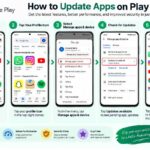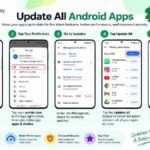
How To Enable Automatic App Updates If you would like to keep Android’s apps up to date without having to visit the app store, Google Play is simple enough to update automatically. Updates keep the features, fix bugs, security updates and sometimes even stability updates for less work. Current Google Play Store settings also let you choose whether you’d like update to happen over Wi-Fi, mobile data or a limited amount of mobile data.
How to turn on automatic app updates
Follow the instructions below to enable auto-update most up-to-date Android devices: Open Google Play Tap your profile picture at the top right and then tap Setting Tap Network preferences Tap Auto-update apps When asked for options, the Current Google options include update over Wi-Fi or mobile data, Wi-Fi only, and not auto-update. Limited mobile data also is an option for some users.
Most current Samsung instruction paper for 2026 support use the same path through the Play Store, but exact menu names can differ slightly depending upon your Play Store version, device model and variation of your software.
Which auto-update choice should I choose?
Options Best For Primary benefit
Wi-Fi or mobile information Unlimited mobile users Update apps when necessary
Wi-Fi only Most users Minimize mobile-data usage
Limited mobile data Eligible users with limited information Update selected background apps
Don’t auto-update Users who want complete control Updates are manual
For the most part, Wi-Fi only is an affordable compromise: it keeps Android apps up-to-date and averts most mobile-data cost surprises. However, if you have an unlimited mobile data allowance plan, updating this way might be more convenient.
Can I auto-update a single app?
Yes. If you’d like, you can decide to automatically update just some apps, not all of these. Hit your profile image Manage apps & device Manage (or Look up Manage apps & device Manage) Choose the app Tap the three-dot menu Turn on auto-update Great to stay up-to-date on some apps and monitor others.
Why do auto-updates sometimes not work?
If you’ve enabled auto-updating but apps are not updating, double check your internet connection and be sure you selected the right setting for auto-updating applications. Sign-in mistakes to your account can keep auto-updating too. Also check available storage, and reboot the phone if an update refuses to go through. And remember, even if auto-updating isn’t enabled, Google updates applications when it can in the background.
Is it safe to enable auto-updating?
Most likely yes. Enabling applications up-to-date is one method of enhancing app safety and stability and making certain you get the newest version as they are unveiled. Google states a few apps may receive security-critical updates outside of any choice to auto-update.
FAQ
Can I auto-update applications? Absolutely, you are able to auto-update this, just turn auto-update on.
I leave applications all auto-update? No, it depend if the apps can be auto-updated or not.
Just how do I disable auto-update? Launch the Google Perform Store Settings Network preferences Auto-update apps menu and choose Don’t auto-update applications What is the auto-update application? An application can be auto-updated and if it is, it’ll auto-update on your device.
Will auto-update make use of data? Auto-updating utilize data if the auto-update preferences are set to utilize mobile data or otherwise only when you will be connected to Wi-Fi.