To fix an app in Play Store is not updating again and again and Play Store hangs is mostly associated with your internet connection, internet storage, Play Store data, Google Play services and the temporary Android issue. Luckily for you most of the update issues can be fixed without uninstalling the apps or factory reset your phone.
Why Are My Play Store Apps Not Updating?
Apps may fail to update for several reasons:
- Weak or unstable Wi-Fi or mobile data
- Not enough free storage
- An outdated Android version
- Google Play Store cache problems
- Google Play services issues
- Incorrect date and time settings
- A problem affecting only one specific app
If multiple apps are stuck, start with the general fixes below. If only one app refuses to update, check whether that app is compatible with your device.
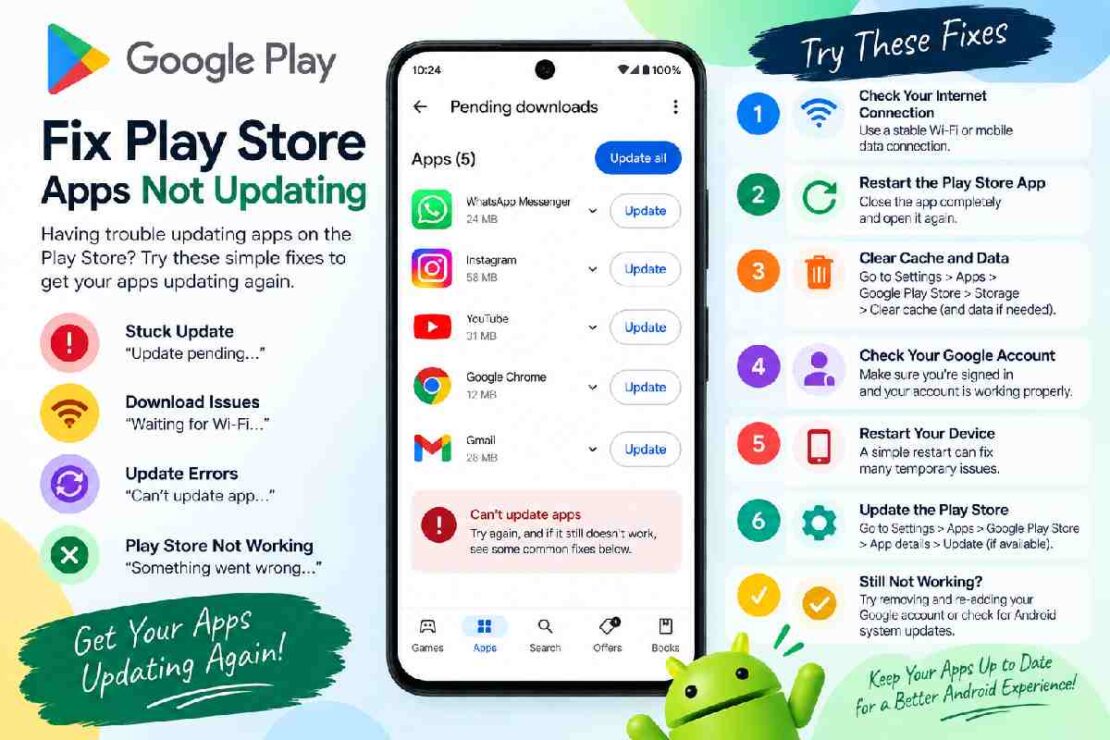
7 Ways to Fix Play Store Apps Not Updating
1. Check Your Internet Connection
Begin with the easy fix. Ensure your phone has a reliable Wi-Fi or mobile data connection. If you’re connected to a Wi-Fi network, Google recommends you switch to a mobile data connection whenever possible for downloads or updates from the Play Store.
2. Check Available Storage
Low storage can prevent apps from downloading or installing. Google specifically recommends checking storage when downloads or updates are stuck.
Go to Settings → Storage and remove unnecessary files or apps if your phone is nearly full.
3. Restart Your Android Phone
A restart can clear temporary system problems affecting the Play Store.
Press and hold the power button, select Restart, then open Google Play Store again and try the update.
4. Clear Google Play Store Cache
This is one of the most useful fixes when Play Store updates are stuck.
Go to:
Settings → Apps → Google Play Store → Storage & cache → Clear cache
Then reopen the Play Store and try updating the app again. Google identifies clearing Play Store cache as a common troubleshooting step.
5. Clear Play Store Data
If clearing the cache does not work, you can clear Play Store storage/data.
Go to Settings → Apps → Google Play Store → Storage & cache → Clear storage.
Be aware that this can reset some Play Store settings, including certain preferences and parental-control settings.
6. Update Google Play Store and Android
An outdated system or Play Store version can contribute to update problems.
For Android, check Settings → System → Software update. Menu names can vary by phone.
To update the Play Store, open Google Play Store → Profile picture → Settings → About → Update Play Store.
7. Check Google Play Services
Google Play services – Android apps that use Google services depend on Google Play services and its operation can impact the performance of apps. Settings Apps Google Play services Storage & cache. Clear cache. Google suggests clearing the cache of Google Play services first before clearing all the data as this can delete some data and the app needs to be logged in again.
Quick Comparison of the Best Fixes
| Fix | Best For | Difficulty |
|---|---|---|
| Check internet | Updates won’t start | Easy |
| Free storage | Download/install errors | Easy |
| Restart phone | Temporary glitches | Easy |
| Clear Play Store cache | Updates stuck | Easy |
| Clear Play Store data | Persistent Play Store problems | Medium |
| Update Android/Play Store | Outdated software | Easy |
| Check Play services | Multiple Google-related issues | Medium |
What If Only One App Won’t Update?
5. If only one app is affected it is probably limited to that app. Check with the developer of the software to see if it is compatible with your device. You can also try re-installing the app, but you may lose local app data doing this.
6. If only one app is affected, don’t need to change Google account or Play store settings needlessly until you have tried the solutions for the app.
Frequently Asked Questions
Why is my play store Pending all apps – It’s a problem that most will be experienced and can usually be fixed by restarting the device and clearing Google Play cache.
Why is my Play Store taking so long to install?
– To fix Play Store getting stuck on installing, you can try restarting your device or clearing Google Play app cache.
Why can’t I update apps on my phone?
Go to the Settings menu on your phone. Tap Apps and notifications (or Application manager). Find the app that you’re having trouble updating. If you don’t see the app you want to update, tap See all apps.
Should I clear Play Store data?
You could try it after the cache is cleared, but if you clear data in the Play Store.
What is the safest first fix?
Begin with your Internet connection, Storage, and Phone Restart. These are simple and nearly risk free.
Final Takeaway
If the apps in your Play Store aren’t updating, start from the easiest fix and move to the more difficult options. Make sure you have a working internet connection, free up storage, give the phone a restart, clear the cache of your Play Store app and then if required, check the Play Store/Googl