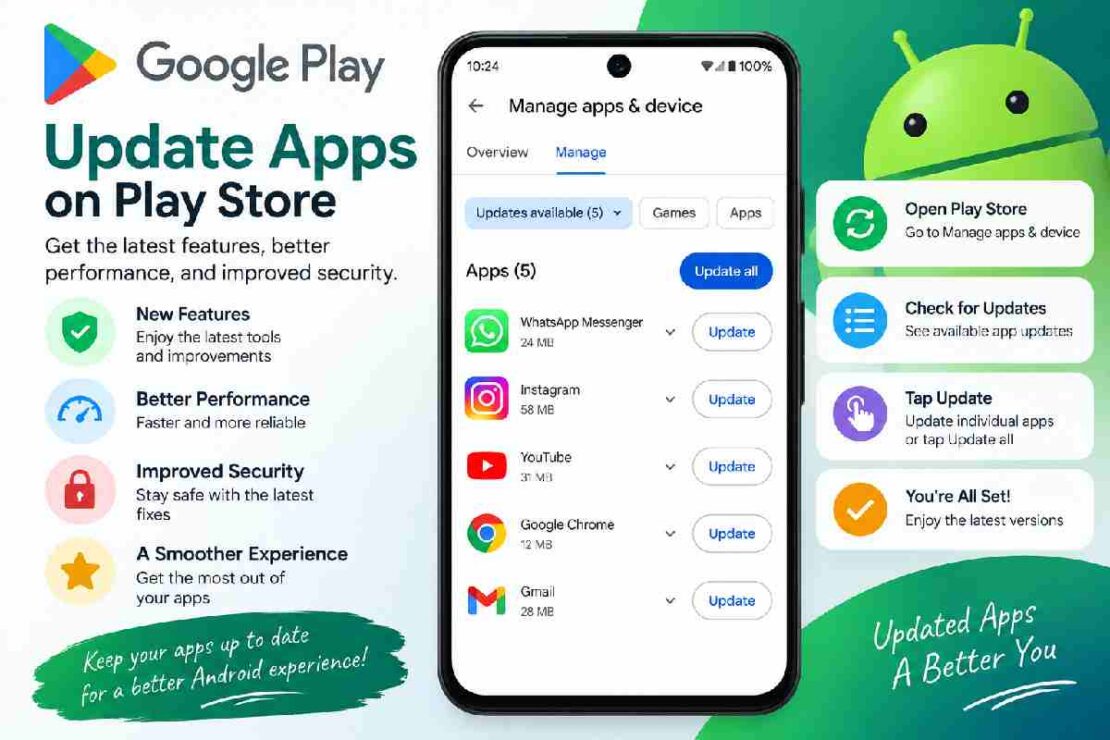
Keeping your Android apps updated doesn’t need to be rocket science. Play store update apps instructions While the fastest way to update Play Store apps is to open the Google Play Store, then tap your profile picture, then select Manage apps & device, then see Available updates. There, you can update individual apps or tap Update all to update all apps. Google says app updates can add features but also make the app more secure and stable.
But there’s a lot more to managing app updates than simply pressing one button.
Note if you want to enable auto-updating of apps, auto-updates using Wi-Fi or mobile data, auto-updated of only selected apps, update Google Play Store, or fix apps that won’t update.There is a chance that this process may be a little different from what you experienced, depending on your version of Android, the version of the Google Play Store, and the manufacturer. In this complete guide, find out how to update Google Play Store apps on 2026, the method you must select, and how to resolve a frozen update.
Quick Answer: How Do You Update Apps in the Play Store?
To update Android apps manually:
- Open the Google Play Store.
- Tap your profile picture in the top-right corner.
- Select Manage apps & device.
- Look under Updates available.
- Tap See details if you want to choose specific apps.
- Tap Update beside an individual app.

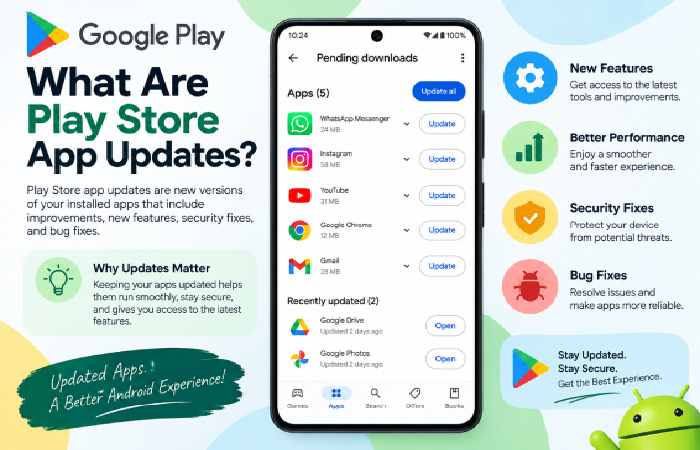
A Play Store app update is a newer version of an application distributed through Google Play.
Developers release updates for many different reasons. An update may:
- Add new features
- Fix bugs
- Improve performance
- Address security problems
- Improve compatibility with newer Android versions
- Change the app’s interface
- Improve stability
- Fix crashes or other known problems
Google specifically notes that updating Android apps provides access to the latest features and can improve security and stability.
An update does not normally mean you need to uninstall and reinstall the app. In most cases, Google Play downloads the newer version and installs it over the existing version while preserving your app data.
However, some updates may require a device restart or additional permissions. Google also notes that certain critical security-related updates may be delivered even when normal update settings would otherwise prevent an update.
Why Should You Keep Android Apps Updated?
You do not necessarily need to install every update the second it appears. However, leaving important apps outdated for long periods can create unnecessary problems.
1. Get new features
App creators often introduce new features with an update. Say you’re using a messaging app, and they add new pictures to send, or an app that helps you stay productive with your calendar adds a new sync. If you’re on a previous version, you won’t be able to access those features.
2. Improve security
Security We update your Apps to fix security issues or to have a newer App version. You may need to update your security patches that don’t typically push out in your update settings, as described by Google.
3. Fix bugs
2. An app that crashes, freezes, or starts acting up out of nowhere might have an update available..
4. Improve stability
Updates can address problems that affect how an app performs on particular devices or Android versions.
This can include:
- Crashes
- Freezing
- Login problems
- Compatibility issues
- Broken features
- Performance problems
5. Maintain compatibility
Android itself continues to evolve. Apps need to adapt to newer operating-system versions, device hardware, screen sizes, permissions, and system APIs.
An outdated app can eventually become less reliable on a newer phone.
How to Update All Apps in the Play Store
If you have a handful of updates for your Android apps, updating them all at once is your best bet. Here is how you can do that: Step 1: Open Google Play Store Locate Google Play Store app on your Android device and open it. Step 2: Head over to your account menu Tap on your profile icon or picture at the top right of your screen.
Step 3: Head over to Manage apps & devices Tap on Manage apps & device You will see information regarding installed applications, and updated app versions.
Step 4: Find Updates available You will find out about pending updates here. Tap See details for reviewing individual apps. Step 5: Tap on Update all Finally, tap on Update all to update multiple Android apps at once. Google has also announced that the Update all option will also help you update multiple Android apps at the same time.
Should you always use Update all?
Not necessarily.
Update all is convenient when:
- You have many pending updates.
- You are connected to reliable Wi-Fi.
- You have enough storage.
- You want your apps updated without reviewing each one.
Individual updates may be better when:
- You have limited mobile data.
- Your storage is almost full.
- You want to inspect an app before updating it.
- One particular app is causing problems.
- You are troubleshooting an update issue.
How to Update One App in Google Play Store
You do not have to update every application.
If you only want to update a particular app:
- Open Google Play Store.
- Tap your profile picture.
- Select Manage apps & device.
- Open the available updates list.
- Find the app.
- Tap Update.
You can also search for the app directly in Google Play. If a newer version is available, the app’s page will show an Update button instead of Open.
Google’s current instructions support both updating an individual app and updating all available apps together.
How to Turn On Automatic App Updates
Here’s How To Enable It If you frequently forget to update your apps, automatic updates will probably be the easiest way to get it done. Here’s what to do: Open Google Play Store. Tap on your profile picture.
Tap Auto-update apps. Select your desired update setting. Google currently offers a few options such as updating over Wi-Fi or mobile data, using limited mobile data (when available), over Wi-Fi only, or turning automatic updates off.
Which setting should you choose?
| Setting | Best for | Main consideration |
|---|---|---|
| Wi-Fi or mobile data | Unlimited/reliable data users | Can consume mobile data |
| Wi-Fi only | Most users | Updates wait for Wi-Fi |
| Limited mobile data | Users who occasionally need mobile updates | Availability may vary |
| Don’t auto-update | Users wanting full control | You must update manually |
For most people, Wi-Fi only is a practical balance between convenience and data control.
How to Automatically Update Only One App
You do not have to enable automatic updates for every app.
Google also provides an option to enable automatic updates for an individual application.
The general process is:
- Open Google Play Store.
- Tap your profile picture.
- Select Manage apps & device.
- Tap Manage.
- Find and open the app.
- Tap the three-dot More menu.
- Enable Enable auto update.
This approach is useful if you have a few apps that you always want kept current while preferring manual control over everything else.
How to Update the Google Play Store Itself
2. Updating the Google Play Store App Unlike most apps, you should always update the Play Store itself via the Google Play Store app. Here are the steps you’ll need to update the Play Store app: Open Google Play Store. Tap your profile picture.
Tap Settings.
Tap About. Tap Update Play Store. The Google Play team says that if the Play Store has an update, it will automatically download and install after you tap the update option.
Play Store Update Apps: Manual vs Automatic
Both methods work, but they serve different needs.
| Factor | Manual updates | Automatic updates |
|---|---|---|
| User control | High | Lower |
| Convenience | Moderate | High |
| Data control | High | Depends on settings |
| Ability to review apps first | Yes | Limited |
| Best for | Careful users | Most everyday users |
| Maintenance required | Regular checking | Very little |
Our recommendation
For most Android users, automatic updates over Wi-Fi are the easiest choice.
If you have limited storage or mobile data, manual updates may make more sense.
How Play Store Updates Use Mobile Data
One common concern with automatic updates is mobile-data usage.
Google provides different automatic-update choices depending on your account, device, and availability. One option can allow updates over a limited amount of mobile data for some users. Google says Play prioritizes certain updates and tries to use Wi-Fi first.
If your mobile plan has a strict data allowance, Wi-Fi-only updates are usually the safer choice.
Simple data-saving strategy
Use:
Auto-update apps → Update over Wi-Fi only
Then manually update an important app when you are away from Wi-Fi and need its newest version.
What Happens When You Update an App?
When you select Update, Google Play generally downloads the newer version and installs it on your device.
Depending on the application, you may notice:
- A short download
- Installation time
- A temporary change in app availability
- A request for additional permissions
- A prompt to restart the device
Google specifically notes that some updates may require new permissions and that you may occasionally need to restart your device after an update.
Your personal data inside the app is generally retained, but this is not the same as saying every app behaves identically. Apps can handle migrations and stored data differently.
For important apps, it is sensible to maintain a backup of valuable information independently of the app update process.
Play Store Update Apps Comparison
Different update approaches make sense for different Android users.
| Method | Ease | Control | Data efficiency | Best use |
|---|---|---|---|---|
| Update all | ★★★★★ | ★★ | ★★★ | Many pending updates |
| Update individually | ★★★★ | ★★★★★ | ★★★★★ | Selective updating |
| Auto-update over Wi-Fi | ★★★★★ | ★★★★ | ★★★★★ | Everyday use |
| Auto-update over mobile data | ★★★★★ | ★★ | ★★ | Generous data plans |
| Individual auto-update | ★★★★ | ★★★★★ | ★★★★ | Important apps |
| Play Store self-update | ★★★★ | ★★★★ | ★★★★ | Updating the store itself |
The best option depends less on the phone and more on your priorities: convenience, control, data usage, and storage.
How to Check Whether an App Is Already Updated
There are several ways to check.
Method 1: Check Manage apps & device
Open:
Play Store → Profile → Manage apps & device
If no relevant update appears, Google Play does not currently show a newer version for that installed app.
Method 2: Search for the app
Search for the application in Google Play.
If the app page shows Open, you may already have the current Play Store version available to your device.
If it shows Update, a newer version is available.
Keep in mind that updates can roll out gradually, and availability can vary by device, account, region, or developer rollout.
Why Is My App Not Updating?
Sometimes you tap Update and nothing happens.
There are several possible reasons.
1. Poor internet connection
An unstable connection can interrupt downloads.
Try switching between Wi-Fi and mobile data, or move to a stronger Wi-Fi connection.
2. Not enough storage
An update needs available storage to download and install.
Check your phone’s storage if an update repeatedly fails.
Delete unnecessary files or uninstall apps you no longer use if necessary.
3. Play Store problems
The Play Store itself can occasionally experience temporary issues.
Restarting the phone and reopening Google Play can be a simple first step.
4. Account problems
Google notes that a sign-in error on an account can prevent apps from updating automatically.
Check that the Google account connected to Play Store is working normally.
5. The update is not available for your device
An app developer may restrict an update to particular Android versions, devices, or configurations.
You may also receive an update later than another user.
6. The app is already current
If the app page does not offer an Update button, there may simply be no newer version available to your device at that moment.
What to Do When Play Store Apps Won’t Update
Try these troubleshooting steps in order.
1. Check your connection
Make sure your Wi-Fi or mobile connection is working.
2. Check storage
Low storage is one of the easiest things to overlook when an installation fails.
3. Restart your phone
A restart can clear temporary system problems.
4. Reopen Google Play
Close Play Store and open it again before checking for updates.
5. Check your Google account
Make sure there is no sign-in or account error.
6. Try updating the app individually
If Update all fails, try updating one app.
This can help identify whether the problem is with one application or with Play Store more broadly.
7. Check the Play Store itself
Go to:
Play Store → Profile → Settings → About → Update Play Store
Google provides this option for checking and updating the Play Store application.
Why Does Google Play Say “Pending”?
A Play Store update can remain pending when another download or installation is taking priority.
Possible causes include:
- Several apps updating simultaneously
- Slow internet
- Limited storage
- A temporary Play Store issue
- Another download already in progress
- Device or account restrictions
Start by checking your connection and storage.
If you selected Update all and many apps are waiting, give the process some time before assuming that it has failed.
Should You Update Every App?
Usually, keeping your regularly used apps current is a sensible practice.
However, there is no rule saying you must manually install every update immediately.
A practical approach is:
Update immediately or automatically:
- Banking apps
- Password managers
- Messaging apps
- Security-related applications
- Apps you use every day
Review first when appropriate:
- Large games
- Apps you rarely use
- Apps with unusually large downloads
- Apps that have previously introduced problems after updates
The goal is not simply to maximize the number of updates installed. It is to keep your device secure, stable, and useful without wasting data or storage.
Are Third-Party “App Updater” Apps Necessary?
For apps installed through Google Play, you generally do not need a separate third-party updater to perform ordinary Play Store updates.
Google Play already provides:
- Available-update detection
- Individual updates
- Update all
- Automatic updates
- Per-app automatic update controls
Google’s official instructions cover these functions directly.
There are third-party apps in Google Play that advertise themselves as software or app update tools. Some simply provide shortcuts or scan for pending updates, but they do not replace Google Play as the underlying source for Play Store app updates. For example, current listings explicitly state that the user ultimately performs update actions through Play Store or another official source.
Our recommendation
If an app is available through Google Play, prefer updating it through Google Play itself rather than installing another application simply to manage updates.
This keeps the process simpler and reduces the number of apps that need access to your device.
Google Play Store vs Samsung Galaxy Store
Samsung Galaxy phones can have apps distributed through both Google Play Store and Samsung Galaxy Store.
Samsung’s current support documentation explains that Galaxy users can update Play Store apps through Google Play and manage Galaxy Store apps separately.
This matters because an app installed from one store is not necessarily managed by the other store.
If you own a Samsung phone:
- Use Google Play Store for apps installed through Google Play.
- Use Galaxy Store for apps distributed through Samsung’s store.
- Check both stores when troubleshooting an application that came from a specific marketplace.
Samsung’s newer 2026 guidance also notes that menu paths can vary according to the Play Store version, device model, and software version.
Best Play Store Update Settings for Different Users
There is no single best setting for everyone.
For beginners
Recommended: Wi-Fi-only automatic updates.
It requires little maintenance and avoids using significant mobile data.
For users with unlimited mobile data
Recommended: Automatic updates over Wi-Fi and mobile data.
This provides maximum convenience.
For users with limited data
Recommended: Wi-Fi-only updates.
You can manually update important apps when necessary.
For advanced users
Recommended: Manual or selective automatic updates.
This gives you more control over which apps change and when.
For users troubleshooting an app
Recommended: Update that specific app manually.
This lets you determine whether the newest version resolves the problem.
Play Store Update Apps: 2026 Feature Comparison
The core update functions available through Google Play can be summarized like this:
| Feature | Available |
|---|---|
| Update one app | Yes |
| Update all apps | Yes |
| Automatic updates | Yes |
| Per-app automatic updates | Yes |
| Wi-Fi-only updates | Yes |
| Mobile-data updates | Yes, depending on settings |
| Limited mobile-data option | Available to a limited group |
| Play Store self-update | Yes |
| Update notifications | Configurable |
| Update security-related apps | Yes |
| View available updates | Yes |
Google’s current help documentation confirms the main update, automatic-update, and Play Store self-update functions.
Tips for Managing Android App Updates
1. Use Wi-Fi for large updates
Large games and media-heavy applications can consume considerable data.
2. Keep enough free storage
Do not wait until your phone is almost full before installing updates.
3. Enable automatic updates for important apps
This reduces the chance of forgetting critical updates.
4. Review permissions after major updates
Google notes that some app updates can require new permissions.
If an app suddenly requests permissions that seem unrelated to its purpose, review them carefully.
5. Update apps that you actually use
Keeping hundreds of unused apps current may consume storage and data unnecessarily.
If you no longer use an application, uninstalling it may be more useful than repeatedly updating it.
6. Do not confuse app updates with Android system updates
Updating WhatsApp, Gmail, or a game is different from updating the Android operating system.
Check your phone’s system-update settings separately when you need an Android OS update.
7. Do not install suspicious updater tools
For normal Play Store applications, Google’s own update system is usually all you need.
Common Play Store Update Mistakes
Mistake 1: Using mobile data without realizing it
If automatic updates are allowed over mobile data, several pending applications can consume your allowance.
Mistake 2: Ignoring storage warnings
An app may fail to update because the phone cannot make enough room for the new installation.
Mistake 3: Assuming every phone has identical menus
Samsung, Pixel, OnePlus, Motorola, Xiaomi, and other Android devices can present slightly different interfaces.
The underlying Play Store process is similar, but menu wording can change.
Samsung specifically warns that some paths can vary according to Play Store version, device model, and software version.
Mistake 4: Installing an updater app unnecessarily
You normally do not need another app to update applications downloaded from Google Play.
Mistake 5: Updating everything while troubleshooting
If one application is causing a problem, updating it individually makes it easier to determine whether the update solved the issue.
Frequently Asked Questions
How to Update All Apps on Google Play Store?
You can open the Google Play Store, go to your profile picture, manage apps & devices, go to the available updates, and hit Update all.
How to Update Apps Automatically?
Just go to the Profile Settings Network preferences Auto-update apps and select your preferred mode.
Should you update apps manually or automatically?
Manual updates give you maximum control, and auto updates are more convenient. Google Play Offers Auto-Update Apps, But What If I Don’t Want It? It does, but again you don’t have to.
Just go to Play Store settings Auto-update apps and set it to your preference.
How do I update only one app?
Open the available updates, and tap Update next to the app.
How do I update Google Play Store?
Open Google Play Store, select your profile picture, and go to Settings About Update Play Store. An update is available if the button says update, Google Play Store will do the rest.
Why aren’t my apps updating from the Play Store?
Check your internet connection, available storage space, Google account settings, Play Store status, and to make sure an update is available at all.
Will an update delete my data?
A normal Play Store update should simply update the app and leave the existing data intact. Of course, individual apps may handle data differently, so back up data if necessary.
Do Play Store apps update over Wi-Fi?
They can, and usually do, Google allows you to choose if you want to update apps over Wi-Fi only or over the network data.
Why does my update say update on another phone and not mine? It can be a device or version issue, or Google simply staged a release for your device and not the device of your friend.
Should I install third-party app updater apps?
If you get your apps through Google Play, you do not need an updater. If you get them elsewhere, you probably do.
.
Final Verdict: What’s the Best Way to Update Android Apps?
The easiest way to get the simplest answer for you is to just let Google Play automatically update over Wi-Fi.
If you want more control, manage apps & device to see any waiting updates, and do one at a time.
And if you are troubleshooting or otherwise for some reason want to be sure, check out their Play Store page before going to Plan D – rebooting to remove the app altogether.
Play store update apps isn’t in the slightest complicated or demanding, and it doesn’t require the installation of some third-party developer app either. By sticking with best practices like Wi-Fi, a handful of apps, and managing your storage, you can keep the apps you use every day fresh and in shape with just a bit of hands-on time.