
Last Updated: June 22, 2026
Microsoft Office 2021 Free Download: What You Need to Know
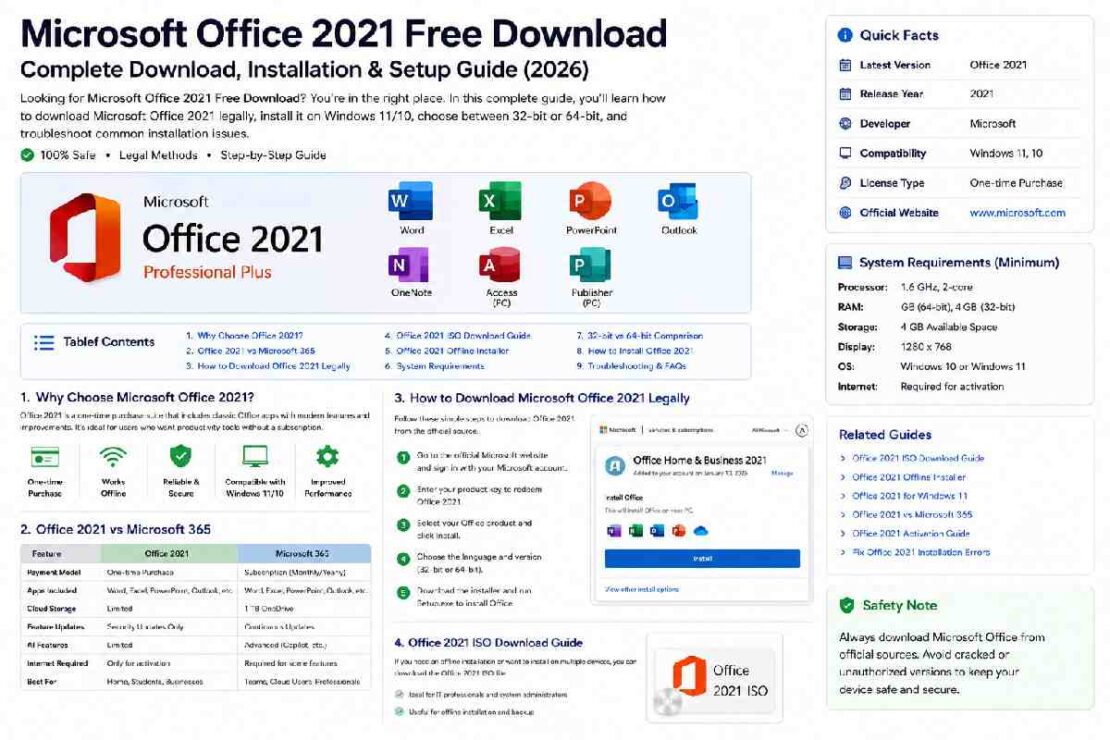
If you’re searching for Microsoft Office 2021 free download, you’re likely looking for a legal way to install Word, Excel, PowerPoint, and Outlook without paying for a recurring Microsoft 365 subscription.
Office 2021 remains one of the most popular productivity suites in 2026 because it offers a one-time purchase license instead of a monthly subscription. While Microsoft does not provide a permanently free version of Office 2021, users can legally download and install it after purchasing a valid license and linking it to their Microsoft account.
In this complete Office 2021 Download & Installation Hub, you’ll learn:
- How to download Microsoft Office 2021 legally
- Office 2021 ISO download options
- Office 2021 offline installer setup
- Office 2021 system requirements
- Office 2021 for Windows 11 compatibility
- Office 2021 32-bit vs 64-bit comparison
- Common installation errors and fixes
Why Office 2021 Still Matters in 2026
Although Microsoft has released newer Office versions, many users continue choosing Office 2021 because it offers:
One-time payment
No monthly subscription
Full desktop applications
Offline access
Familiar interface
Business and educational compatibility
For users who don’t need cloud-first collaboration or AI-powered features, Office 2021 remains a practical solution.
Office 2021 vs Microsoft 365
One of the biggest questions users ask before downloading Office is whether Office 2021 is still worth buying.
| Feature | Office 2021 | Microsoft 365 |
|---|---|---|
| Payment Model | One-Time Purchase | Subscription |
| Word, Excel, PowerPoint | Yes | Yes |
| Outlook | Yes | Yes |
| OneDrive Storage | Limited | Included |
| Feature Updates | Security Only | Continuous |
| AI Features | Limited | Extensive |
| Offline Usage | Excellent | Good |
| Long-Term Cost | Lower | Higher |
Expert Recommendation
Choose Office 2021 if:
- You prefer owning software outright
- You rarely use cloud features
- You need Office on a single PC
- You want predictable costs
Choose Microsoft 365 if:
- You work across multiple devices
- You need collaboration tools
- You want Microsoft’s latest AI features
How to Download Microsoft Office 2021 Legally
Many websites claim to offer “free Office 2021 downloads.” Unfortunately, many of these downloads contain malware, modified files, or illegal activation tools.
The safest method is always through Microsoft’s official installation process.
Step 1: Purchase a Valid License
Purchase a legitimate Office 2021 license from Microsoft or an authorized reseller.
Step 2: Redeem Your Product Key
Visit Microsoft’s setup portal and associate your product key with your Microsoft account.
Step 3: Sign In
Log into the Microsoft account that contains your Office license.
Step 4: Download Office
Access your account dashboard and select your Office product for download.
Step 5: Install and Activate
Run the installer and complete activation using your Microsoft account. Microsoft’s official installation process requires signing in to your account and selecting the Office product from your dashboard before installation begins.
Microsoft Office 2021 ISO Download Guide
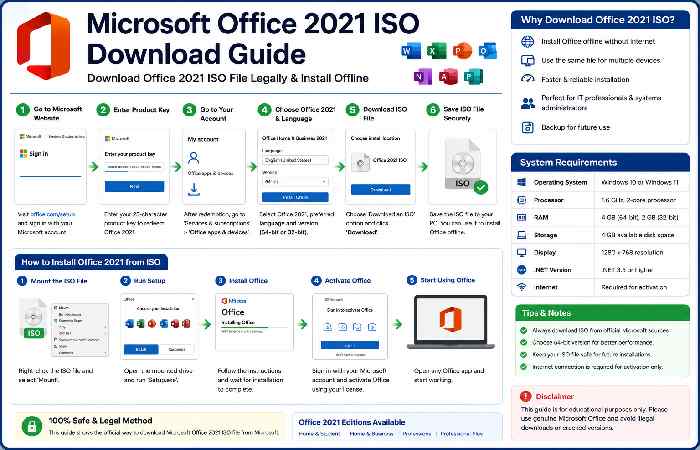
Advanced users and IT administrators often prefer ISO files.
Benefits of ISO Installation
- Install on multiple devices
- Faster deployment
- Offline installation
- Recovery and backup purposes
- Enterprise rollouts
When Should You Use ISO Files?
ISO installations are ideal when:
- Internet connectivity is limited
- Multiple PCs need deployment
- You manage office environments
Always use official Microsoft distribution channels to obtain installation media.
Office 2021 Offline Installer
The Office 2021 Offline Installer allows you to install Office without downloading files during setup.
Advantages
| Benefit | Why It Matters |
| No Internet Required | Install anywhere |
| Faster Setup | Reuse installation package |
| Better Reliability | Avoid interrupted downloads |
| Enterprise Deployment | Easier mass installation |
For businesses, offline installers significantly reduce deployment time.
Microsoft Office 2021 for Windows 11

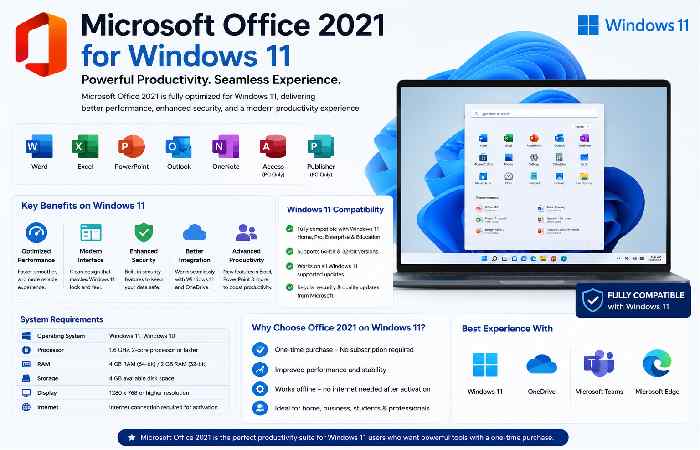
Good news for Windows 11 users.
Office 2021 is fully compatible with Windows 11 and continues receiving security updates during Microsoft’s supported lifecycle. Office 2021 supports Windows 10 and later versions, including Windows 11.
Windows 11 Compatibility Table
| Windows Version | Supported |
| Windows 11 Home | Yes |
| Windows 11 Pro | Yes |
| Windows 11 Enterprise | Yes |
| Windows 10 | Yes |
Office 2021 System Requirements
Before downloading Office 2021, ensure your device meets Microsoft’s minimum requirements.
| Requirement | Minimum |
| Processor | 1.1 GHz Dual-Core |
| RAM | 4 GB |
| Storage | 4 GB Free Space |
| Display | 1280 x 768 |
| Operating System | Windows 10 or Windows 11 |
| Internet | Required for Activation |
These requirements are consistent with Microsoft’s published Office requirements.
Recommended Specifications (2026)
| Component | Recommended |
| CPU | Intel Core i5 / Ryzen 5 |
| RAM | 8–16 GB |
| Storage | SSD |
| Display | Full HD or Higher |
| OS | Windows 11 |
Office 2021 32-bit vs 64-bit
Many users are unsure which version to install.
| Feature | 32-bit | 64-bit |
| Legacy Compatibility | Better | Good |
| Performance | Standard | Faster |
| Large Excel Files | Limited | Excellent |
| Memory Usage | Lower | Higher |
| Recommended in 2026 | Rarely | Yes |
Which Version Should You Choose?
Install 64-bit Office 2021 if:
- Your PC has 4GB RAM or more
- You use large spreadsheets
- You run Windows 11
- You work with Power Query or advanced Excel models
Microsoft generally recommends 64-bit Office on modern systems with sufficient memory.
How to Install Office 2021
Follow these steps:
- Download Office installer.
- Run Setup.exe.
- Accept license terms.
- Wait for installation.
- Open Word or Excel.
- Sign in to Microsoft account.
- Complete activation.
Installation typically takes between 5–15 minutes depending on internet speed and hardware performance. Installation involves downloading and configuring Office applications through Microsoft’s installer.
Troubleshooting Office 2021 Installation
Office Installation Stuck
Fix:
- Restart Windows
- Disable VPN
- Run installer as Administrator
Product Key Not Working
Fix:
- Verify edition matches license
- Confirm Microsoft account ownership
Activation Errors
Fix:
- Check internet connection
- Sign out and back into Microsoft account
Older Office Version Conflict
Fix:
- Remove previous Office installations
- Restart device
- Reinstall Office
Frequently Asked Questions
Is Microsoft Office 2021 free?
No. Office 2021 requires a valid license. Microsoft does not provide a permanently free version.
Can I install Office 2021 on Windows 11?
Yes. Office 2021 supports Windows 11.
Which version should I install: 32-bit or 64-bit?
Most users should choose 64-bit Office. Microsoft recommends 64-bit on systems with 4GB RAM or more.
Does Office 2021 work offline?
Yes. After installation and activation, Office 2021 can be used offline.
Is Office 2021 still worth buying in 2026?
Yes, especially for users who prefer a one-time purchase and do not need ongoing Microsoft 365 subscription features.
Final Verdict
Microsoft Office 2021 remains a reliable productivity suite in 2026 for users who want a perpetual license without recurring subscription costs. By downloading Office through official Microsoft channels, choosing the correct architecture, and following recommended installation practices, you can enjoy a secure and long-lasting Office experience.