
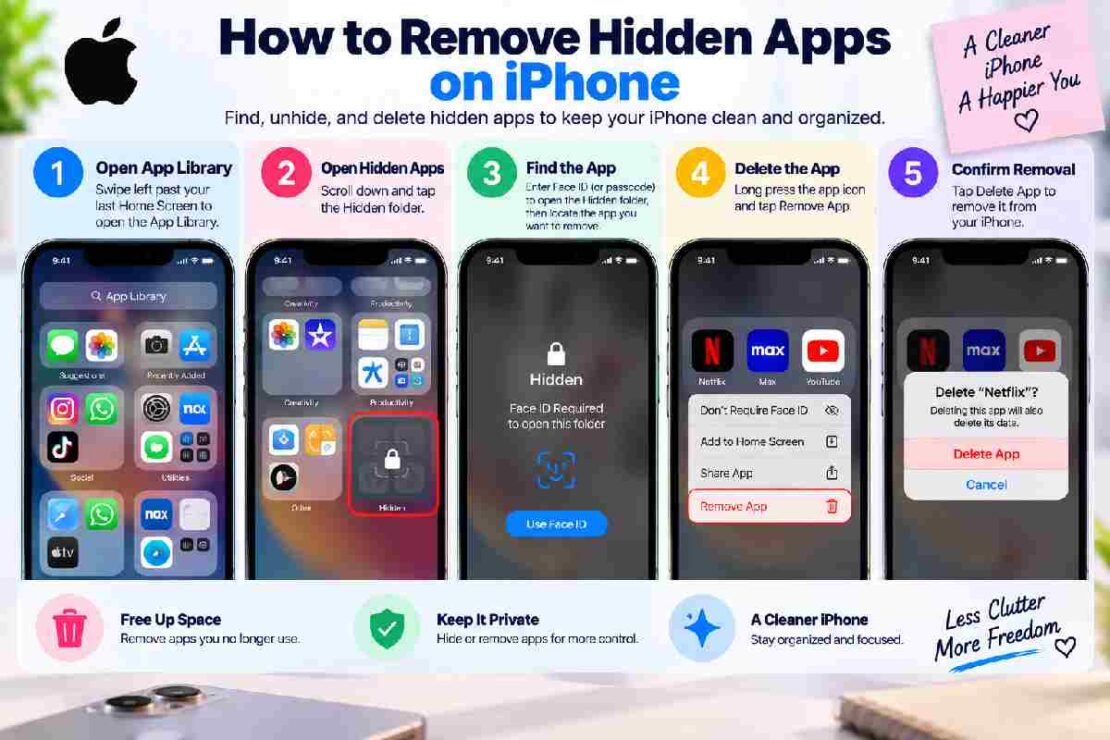
If you want to uninstall apps from iPhone settings, you can remove unwanted apps without searching through your Home Screen. This method is especially useful when an app is hidden, buried in a folder, or simply difficult to find. Your iPhone provides a complete list of installed apps through its storage settings, making it easy for beginners to identify and delete apps.
How to Uninstall Apps From iPhone Settings

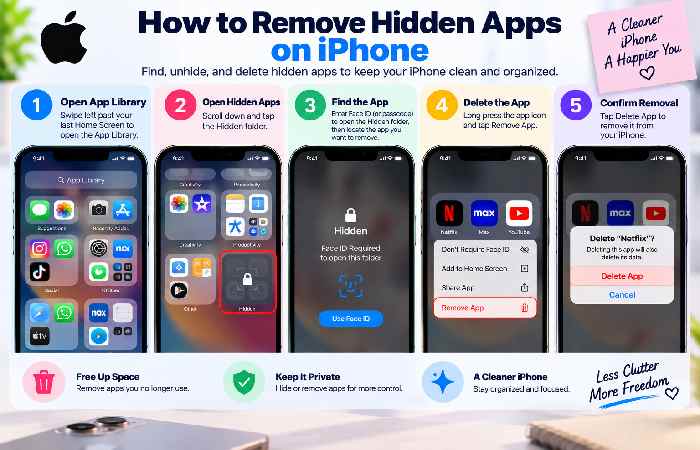
Follow these steps:
- Open Settings on your iPhone.
- Tap General.
- Select iPhone Storage.
- Wait for the list of installed apps to load.
- Tap the app you want to remove.
- Select Delete App.
- Tap Delete App again to confirm.
The iPhone Storage screen is useful because it shows your installed apps in one place. It can also help you identify which apps are consuming the most storage.
Can You Uninstall a Hidden App From Settings?
Yes. If an app is not visible on your Home Screen, it may still be installed on your iPhone.
Apple’s current app-management features allow apps to be kept away from the Home Screen or placed in the App Library. Newer iOS versions can also place intentionally hidden apps inside the Hidden section of the App Library.
If you cannot locate an app normally, Settings → General → iPhone Storage is one of the most straightforward ways to check whether it is installed.
Settings vs. Other Ways to Delete an iPhone App
| Method | Best for | Ease |
|---|---|---|
| iPhone Storage | Finding and removing installed apps | ⭐⭐⭐⭐⭐ |
| App Library | Apps missing from Home Screen | ⭐⭐⭐⭐⭐ |
| Spotlight/Search | Quickly finding a known app | ⭐⭐⭐⭐ |
| Home Screen | Regular visible apps | ⭐⭐⭐⭐⭐ |
The Settings method is particularly helpful when you want to review storage usage before deciding what to remove. Competitor guides also identify iPhone Storage as a practical method for deleting apps that are difficult to find elsewhere.
What If “Delete App” Is Missing?
If you do not see Delete App, check whether the app is restricted by Screen Time or managed by an organization. Also make sure you are selecting the app itself rather than an option that only removes it from the Home Screen.
Remember that Remove from Home Screen does not uninstall the application. It simply keeps the app available through the App Library.
Tips Before You Uninstall an App
Before deleting an app, consider these quick checks:
- Check whether you still need its locally stored data.
- Review its storage usage in iPhone Storage.
- Make sure you know your login details if you may reinstall it later.
- Do not confuse Offload App with Delete App.
- If the app is hidden, locate it first rather than assuming it has been deleted.
Frequently Asked Questions
Does deleting an app from Settings remove it completely?
Selecting Delete App removes the app from the iPhone. However, information associated with an account may still exist with the app’s developer or cloud service.
Can I delete an app that is not on my Home Screen?
Yes. You can use Settings → General → iPhone Storage to find installed apps, even when their icons are not visible on the Home Screen.
Is removing an app from the Home Screen the same as uninstalling it?
No. Remove from Home Screen keeps the app installed, while Delete App uninstalls it.
What is the easiest method for beginners?
For a complete list of installed apps, iPhone Storage is one of the easiest methods because you can find the app without searching through multiple Home Screen pages.
Final Takeaway
Learning how to uninstall apps from iPhone settings gives you a simple way to manage apps that are visible, hidden, or difficult to locate. Go to Settings → General → iPhone Storage, choose the app, and select Delete App. For regular apps, the App Library and Home Screen can also be convenient alternatives.