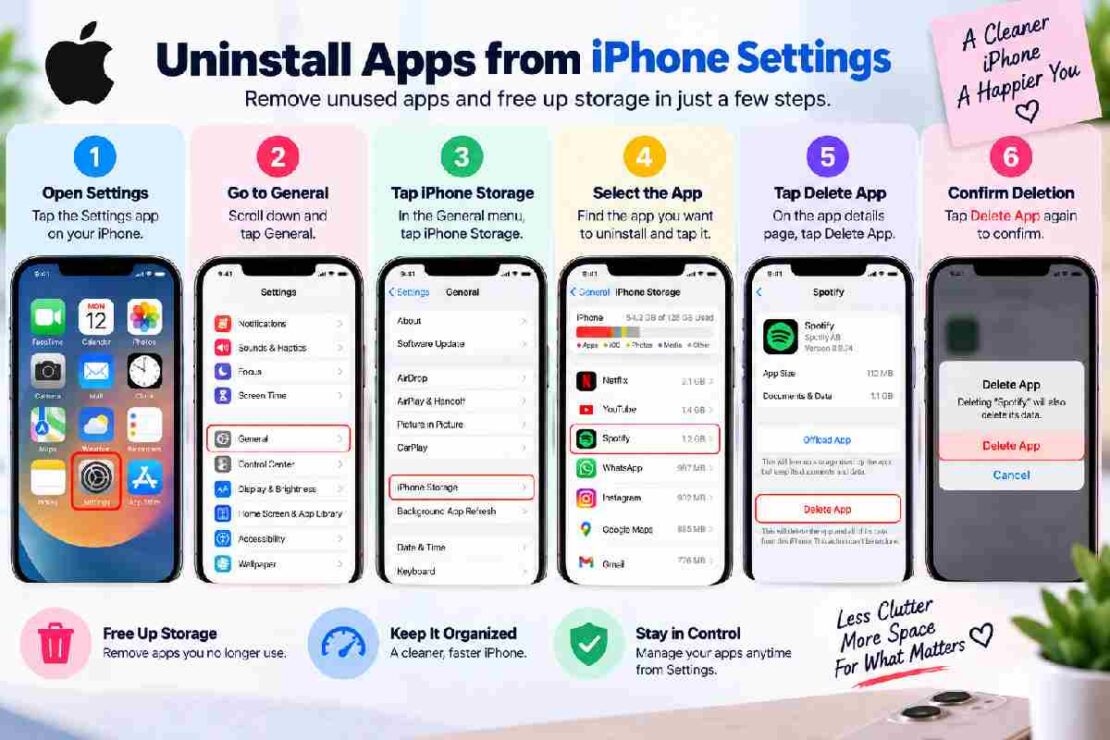
Wondering how to uninstall applications on your iPhone? The fastest and simplest approach to remove an application from your iPhone is on its home screen; simply long press the icon and select the option “Remove app.” This removes the application from your iPhone home screen by taking you to the page where you just have to press “Delete app” and finally “Delete.” According to the instructions by Apple, deleting an application on iPhone also works in new versions too as follows.
Delete Apps on an iPhone from the Home Screen

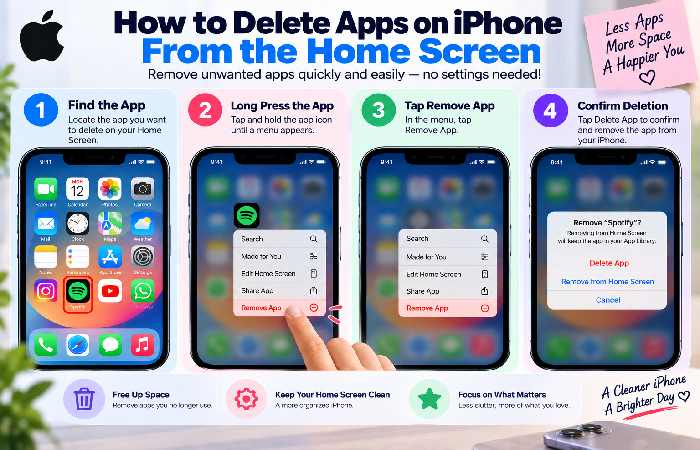
Follow the steps below:
On your iPhone home screen, find the app which you wish to delete.
Long press the app icon.
Select Remove App.
Tap the option Delete App.
Tap Delete to complete the action.
You have now deleted the application on your iPhone. It is important to note however that if you ever decide that you want the application again you can re-download it on the App Store (should it still be on there, which it should be.
Please note that in order to delete an application you MUST first tap the ‘Delete App’ option in either the alert notification you get up on your screen, or in the ‘My Apps’ list within Cydia. In other cases the application will not be deleted and may still sit on your phone, only being taken off your home screen and instead be removed into a list called ‘My Apps’ within Cydia.
Delete an App from your App Library
If the app which you are looking for cannot be seen in the main part of your home screen, the chances are that it’s on your App Library (hidden away so to speak).
To find the app in your App Library, just swipe left past the main iPhone home screen, once you find it select and long press it, just like before select Delete App, and then Delete the app again! If you wish, you will also have the option to find your app using the App Library search function at the top of your phone simply type its name into the search bar.
Deleting, Removing, and Offloading an App: Which is Best for You?
It’s good to know the different outcomes associated with each of the options:
Option Effect Appropriate for
Delete App Removes the app and related data Apps that you don’t need on your phone any more
Remove from Home Screen Moves it to your App Library Keeps apps accessible while de-cluttering your home screen
Offload App Removes it from your phone while keeping its documents and data Apps that you might want to reinstall at some point
Use Remove from Home Screen, if your main priority is keeping your home screen tidy. If you genuinely do not need the application on your device, then use Delete App.
The Possible Issues When Attempting to Delete an App
Some may become worried if they tap an app icon to try and delete it and “Delete App” is not an option. Please note that this isn’t an indication of a malfunction with your phone. Certain restrictions can make applications non-deletable on your phone, plus there are pre-installed Apple apps that use different methods. Furthermore, with deleting certain built-in apps you could have side affects upon your system.
Check the following in an attempt to rectify the issue:
Double-check that you clicked “Remove App” on the original screen and not one of the others.
Attempt to remove the application from your App Library.
Confirm Screen Time isn’t restricting app removal.
Are you phone managed by an employer/school?
Reboot the iPhone.
.
If You Delete an App, is its subscription cancelled?
Be mindful: deleting an app from your iPhone and cancelling its subscription are not the same. Any paid-subscription apps should be managed within your iPhone settings and prior to expecting them to be deleted automatically, should be reviewed. Remember to also check the service in question for further cancellation procedures.
Frequently Asked Questions
Can you remove apps from my iPhone home screen?
Yes, to get rid of an app that you no longer use on your homescreen, just press on it, then click “Remove app”, followed by “Delete app” and finally select “Delete”.
How do I delete apps from my iPhone simply?
The most straightforward and quick approach for the majority of people, just Press, tap, tap and again tap! This is known as deleting them directly from the homescreen.
What will happen if I removed a mobile app from its home screen?
The only thing that will happen when an app is removed from your home screen, as long as you have not tried and deleted the app and there is no setting limiting it from being deleted, is that the application will be stored within your App Library and the relevant icon deleted.
Will it be possible to re install my iPhone app if I decide to uninstall and delete it from my device?
Mostly
The Final Take
In terms of deleting apps from an iPhone you really need to do three things: Press and hold on it, tap ‘Remove App’, tap ‘Delete app,’ then ‘Delete.’ As an alternative, consider ‘Remove from Home Screen’ if your only desire is to tidy things up on the device, or ‘Offload App’ if you think that there’s a chance of wanting to re-install it later and you’d like to conserve space on your phone.