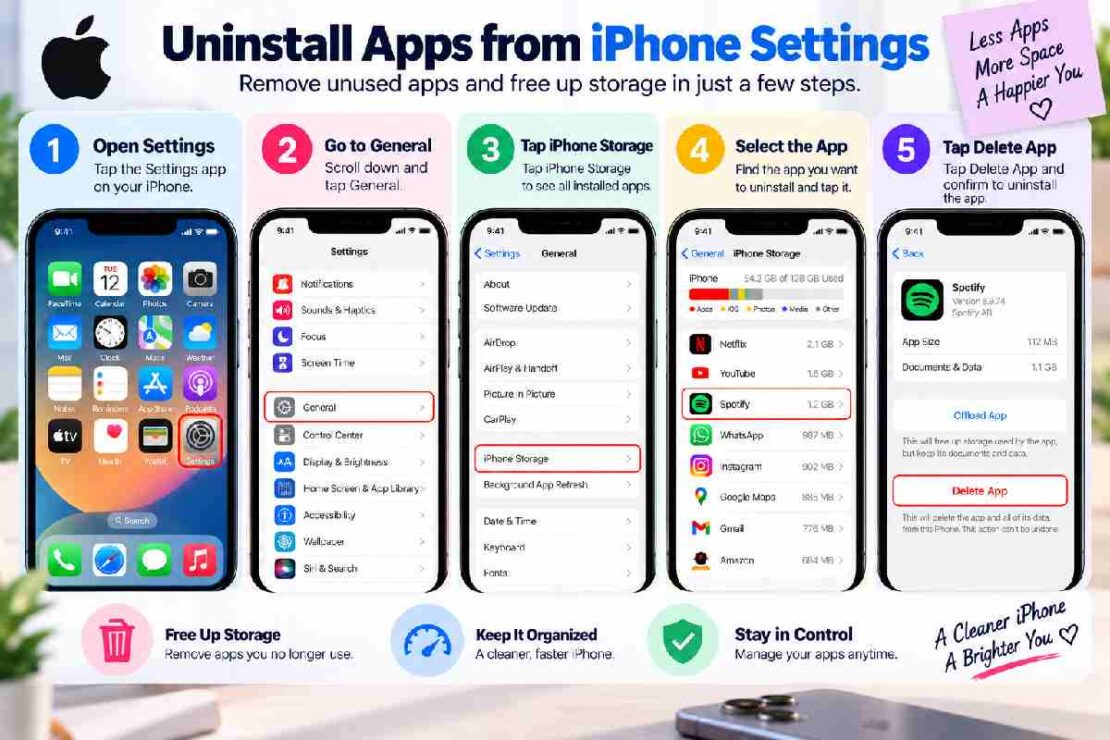
One efficient way is to delete apps via your iPhone’s Settings by accessing iPhone Storage. It can help you delete an application if it is lost or can be displayed the space that the app used by your device. Now Apple has numerous ways to delete applications; they are from iPhone Home screen, App Library, and Settings.
How to Uninstall Apps From iPhone Settings
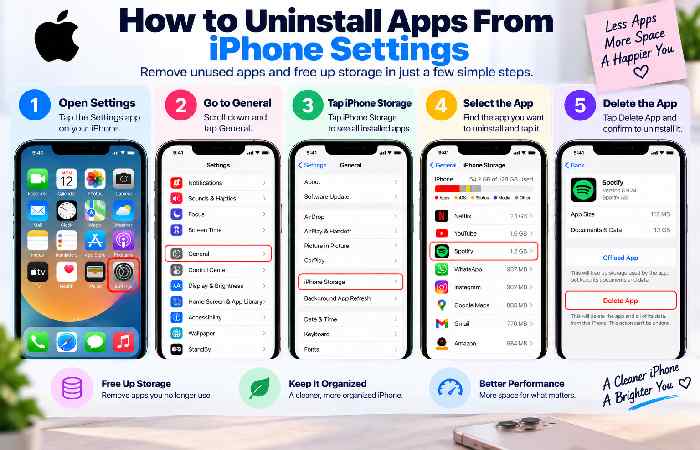
Follow these steps:
- Open Settings.
- Tap General.
- Select iPhone Storage.
- Wait for the list of installed apps to load.
- Tap the app you want to remove.
- Select Delete App.
- Tap Delete App again to confirm.
Especially when it comes to that iPhone Storage screen, it’s very handy in that it also gives you a screen with an explanation of how the storage is used in individual apps, allowing you to then decide whether to delete one.
Screenshot opportunity: RealiPhone screenshot of Settings General iPhone Storage, followed by real iPhone screenshot of an app’sStorage screen.
Delete App vs Remove From Home Screen vs Offload
These options are easy to confuse, especially for beginners.
| Option | App removed? | Data retained? | Best for |
|---|---|---|---|
| Delete App | Yes | Usually removed locally | Apps you no longer need |
| Remove from Home Screen | No | Yes | Keeping an app but hiding its icon |
| Offload App | App removed | Documents/data retained | Freeing space temporarily |
Apple specifically distinguishes deleting an app from simply removing it from the Home Screen. An app removed from the Home Screen can remain available in the App Library.
For a complete walkthrough, see our [delete apps from iPhone Home Screen guide].
Home Screen vs Settings: Which Is Better?
The best method depends on your goal.
Home Screen: fastest for deleting one visible app.
App Library: useful when the app is missing from your Home Screen.
Settings: better when you want to compare storage usage and identify large apps before deleting them.
This makes Settings the more practical choice for an iPhone storage cleanup.
What If “Delete App” Is Missing?
If you cannot see the Delete App option, check whether app deletion is restricted. Screen Time and device-management settings can prevent users from deleting apps. Apple also notes that some built-in apps have different removal rules.
If the app only disappears from your Home Screen, it has not necessarily been uninstalled. Check the App Library or return to Settings → General → iPhone Storage.
E-E-A-T Tip: Before You Delete
Deleting an app can remove locally stored information, downloads, drafts, or settings. Before uninstalling an important app, make sure valuable information is synced or backed up. App data stored on a developer’s servers may require separate account-level deletion.
Also remember that deleting an app does not automatically cancel every subscription associated with it. Check the subscription separately before removing the app.
FAQ
Deleting the app will free up iPhone space?
Yes by deleting the app you clear off the app and any stored data from the phone but it will still leave the app and stored data on your iCloud or developer’s server.
Can I download a deleted app?
Yes if the app is available for download from the App Store.
Is Offload app different from deleting the app?
Yes, offload app is the next closest thing like how deletion is to photos. Deletion of app is quite simple and when Offload app is turned on you delete the app file and all files/data which has been stored in the app is now saved somewhere else like developers server but the app is removed from the phone until there is another purpose that require its use again. Offload app can save space for other important things like other apps you would like to store to your phone but do not wish to forgo the app.