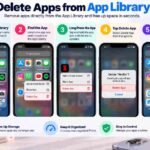
If you want to delete apps from App Library on your iPhone, you can remove them without going through the Home Screen. The App Library keeps installed apps organized automatically, making it useful for finding apps that are not visible on your Home Screen. However, if an app is no longer useful, you can delete it directly from the App Library.
How to Delete Apps From App Library

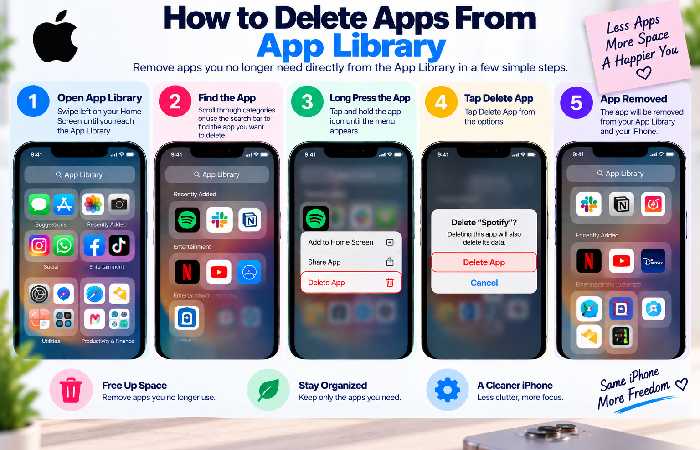
Follow these steps to permanently remove an app from your iPhone:
- Go to your iPhone Home Screen.
- Swipe left past all your Home Screen pages until you reach App Library.
- Find the app you want to remove.
- Touch and hold the app icon.
- Tap Delete App.
- Tap Delete again to confirm.
If you cannot immediately find the app, tap the App Library search field. Your iPhone will display an alphabetical list of installed apps. Find the app, touch and hold its icon, and select Delete App.
Delete vs. Remove From Home Screen vs. Offload
These options are easy to confuse, but they do different things.
| Option | What happens | App data |
|---|---|---|
| Delete App | Removes the app from your iPhone | May be removed with the app |
| Remove From Home Screen | Keeps the app in App Library | Remains available |
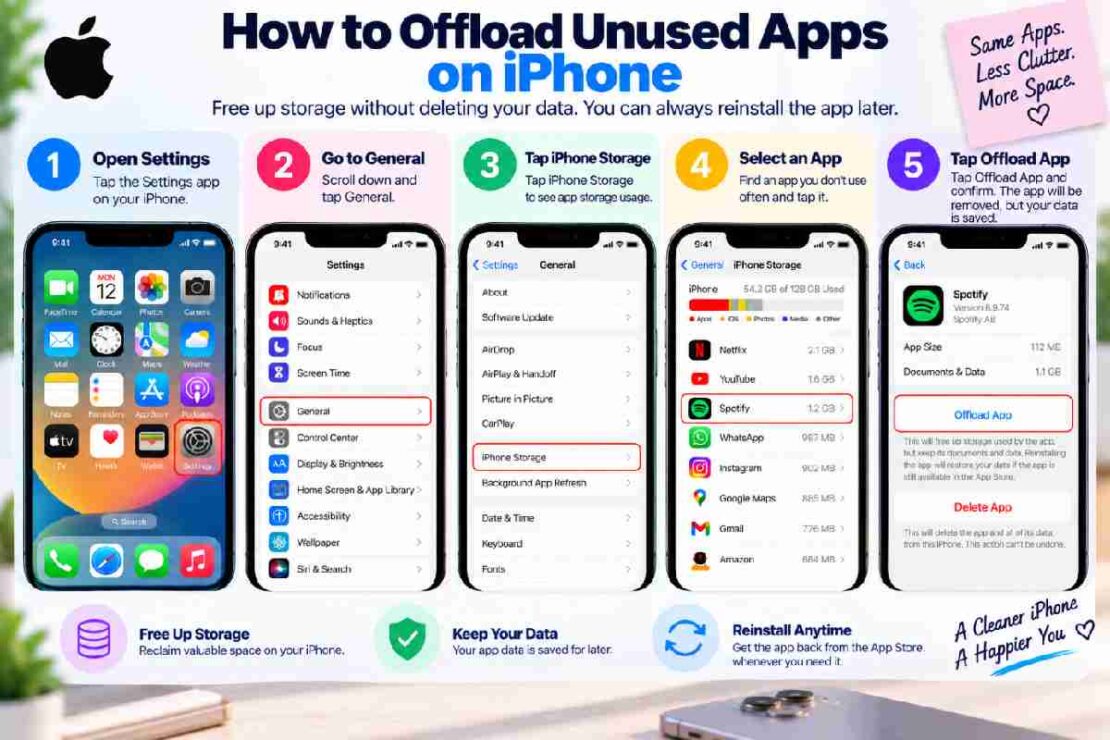
| Offload App | Removes the app but keeps its documents and data | Preserved |
If you simply want to declutter your Home Screen, choose Remove from Home Screen rather than Delete App. Apple explains that this keeps the app in the App Library.
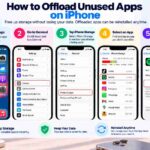
If your main goal is saving storage, offloading unused apps on iPhone can be a better choice. Offloading removes the app itself while allowing you to keep its associated data so you can reinstall it later.
What If You Cannot Delete an App?
If Delete App does not appear, check your Screen Time restrictions. Go to Settings > Screen Time > Content & Privacy Restrictions and review the settings that control app deletion.
You can also try deleting the app through Settings > General > iPhone Storage. This is particularly useful when you cannot easily locate an app in the App Library.
Some built-in Apple apps may also have different deletion rules. Apple currently allows deletion of a number of built-in apps, while certain essential system functions remain protected.
Which Method Should You Use?
Choose the method based on what you want to accomplish:
- Want the app completely gone? Use Delete App.
- Want to hide an app from your Home Screen? Choose Remove from Home Screen.
- Want to free storage while keeping app data? Use Offload App.
- Cannot find the app? Search for it inside App Library.
- Delete option missing? Check Screen Time restrictions.
Deleting an app does not permanently prevent you from getting it again. If the app is still available in the App Store, you can download it again later.
Frequently Asked Questions
Can I delete an app directly from App Library?
Yes. Touch and hold the app in App Library, tap Delete App, then confirm the deletion.
Does removing an app from the Home Screen delete it?
No. Remove from Home Screen only removes the icon from your Home Screen. The app remains available in App Library.
Is offloading the same as deleting?
No. Offloading removes the app while retaining its documents and data, whereas deleting removes the app from the device.
Can I reinstall a deleted app?
Yes, provided the app is still available through the App Store.
Internal-link opportunities: Link this guide to related articles such as “Delete Apps From iPhone Home Screen,” “Uninstall Apps From iPhone Settings,” and “How to Offload Unused Apps on iPhone.”