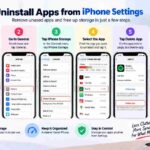

Want to get an app off your iPhone? Good thing there are only a couple of taps. Just long touch the app, tap remove app, tap delete app and tap it one last time to confirm. You’ll need to note the difference between deleting an app, removing it from your home screen, and offloading it.
The rest of the following discusses the iPhone app delete step by step including: deleting a third party app that’s not on your home screen, an app that is using a lot of storage, deleting an app that you want to save all the data on for and the act of deleting of your app
Quick Answer: How Do You Delete an App on iPhone?
The easiest way to permanently delete an app is:
- Find the app on your iPhone.
- Touch and hold the app icon.
- Tap Remove App.
- Tap Delete App.
- Tap Delete to confirm.
The app is removed from the iPhone.
If you only want to remove the icon from your home screen, tap Remove From Home Screen. It’s still in your App Library.
If you’re out of space and want to free up storage on your iPhone without deleting documents and data for that app on the phone, tap Offload App from iPhone storage.
Delete vs. Remove vs. Offload
| Option | App removed? | App data kept? | Home Screen icon |
|---|---|---|---|
| Delete App | Yes | Related local data is removed | Removed |
| Remove from Home Screen | No | Yes | Removed |
| Offload App | App itself is removed | Yes | Usually remains with cloud symbol |
Apple explains that offloading removes the app while keeping its documents and data, whereas deleting an app removes the app and its related data.
How to Delete Apps on iPhone From the Home Screen

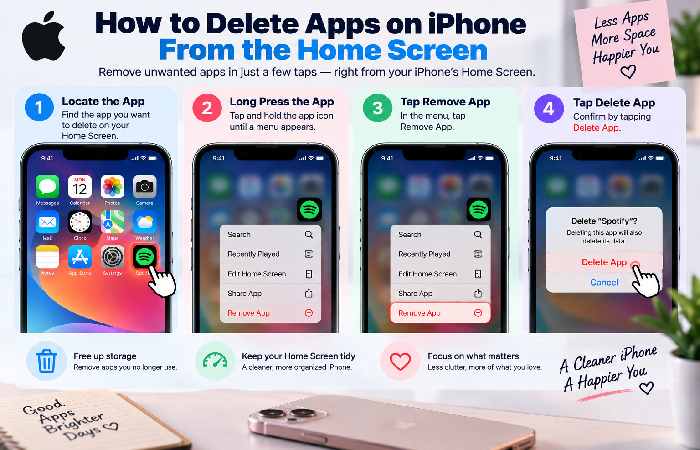
For most people, this is the fastest method.
Step 1: Find the app
Navigate your homescreen by visiting your home page, and touch and hold any application on your homescreen you wish to eliminate. Your application can also be displayed in one of the numerous pages on your home screen, just swipe right, and if necessary utilize spotlight to find it.
Touch and Hold Any Icon Of The App: Your desired application will be located to remove by tapping your icon and holding down any until you see it. It does not require a strong hold, rather simply placing the pressure on
Step 3: Tap “Remove App”
This option appears within that context menu once you touch and hold the icon of the app you want to remove. Additional options appear.
Step 4: tap ‘Delete App’
You should be looking for this option instead of “Remove from Home Screen”. They offer slightly different functions. “Delete App” actually removes the app off of your iPhone entirely. “Remove from Home Screen” simply removes the icon from the Home Screen (your apps would be found within your app library).
Step 5: tap “Delete” to confirm
The “Delete” prompt appears and you simply tap that confirmation to make the app go away permanently from your iPhone. Apple clearly has documentation for this same sequence for up-to-date iPhone software.
How to Delete Apps From the App Library
Can’t locate app from Home Screen? Maybe it’s still installed but hidden within your App Library.
Follow these steps:
- Go to your Home Screen.
- Swipe left past all your Home Screen pages.
- Continue until you reach App Library.
- Find the app you want to delete.
- Touch and hold the app.
- Tap Delete App.
- Tap Delete to confirm.
You can also tap the App Library search field to display an alphabetical list of installed apps. Apple’s current documentation confirms that apps can be deleted directly from App Library.
When should you use App Library deletion?
This method is particularly useful when:
- The app isn’t on your Home Screen.
- You previously selected Remove from Home Screen.
- You have many Home Screen pages.
- You want to clean up apps without searching through folders.
How to Delete Apps on iPhone Using Settings
If your main goal is freeing up iPhone storage, Settings is often the better option.
Instead of deleting apps randomly, you can first see which apps are consuming the most storage.
Step-by-step:
- Open Settings.
- Tap General.
- Tap iPhone Storage.
- Wait for the storage information to load.
- Scroll through the list of apps.
- Tap the app you want to remove.
- Tap Delete App.
- Confirm by tapping Delete App.
Apple’s storage tools show how much space individual apps use and give you options to offload or delete them.
Why this method is useful
The Settings method is especially helpful if your iPhone is running out of storage.
Instead of asking:
“Which apps should I delete?”
you can ask:
“Which apps are using the most space?”
That makes app cleanup much more practical.
Delete Apps vs. Offload Apps: Which Should You Choose?
But it is not good to delete games.
Consider the game that has been in use for many months and you might use it again. When delete the game it could delete data of local appdata and offload for that scenario.
What happens when you offload an app?
An app which is offloaded by an iPhone will also removes the app itself, but leaves document and its related data behind.
The icon of the app can be present as usual in a cloud form. However, when you decide to use the app again you’ll be required to download.
Offloading is whatApple has specifically described as, releasing space that you never would have otherwise, by deleting the app while keeping its documents and data.
.
How to manually offload an app
- Open Settings.
- Tap General.
- Tap iPhone Storage.
- Select the app.
- Tap Offload App.
- Confirm the action.
Delete or offload?
Use Delete App when:
- You no longer need the app.
- You want to remove it completely.
- You’re certain you won’t need its locally stored data.
- You’re performing a major app cleanup.
Use Offload App when:
- You want to free storage.
- You might use the app again.
- You want to keep its documents and data.
- You don’t want to completely remove the app’s local information.
How to Remove an App From the Home Screen Without Deleting It
Sometimes you don’t actually want to delete an app.
Then perhaps you use it sparingly, but don’t want it on your Home Screen all the time.
If so then:
- Touch and hold the app.
- Tap Remove App.
- Select Remove from Home Screen.
The app remains installed and can be accessed through the App Library.
This is one of the most common sources of confusion when people search for instructions on how to delete apps on iPhone. The word “remove” doesn’t necessarily mean “delete.”
Simple rule
Want the app gone? → Delete App.
Want only the icon gone? → Remove from Home Screen.
Want storage back but want to preserve data? → Offload App.
How to Delete Multiple Apps on iPhone
If your iPhone has accumulated dozens of unused apps, deleting them one at a time through individual menus can become tedious.
You can enter Home Screen editing mode and remove apps one after another.
Method:
- Touch and hold an empty area of the Home Screen.
- Wait for the app icons to start jiggling.
- Tap the minus/remove button on an app.
- Choose Delete App.
- Confirm the deletion.
- Repeat for other apps.
- Tap Done when finished.
This method could be relevant when doing a big cleaning, such as removing all your games, the applications to buy your items, the ones to plan your travel or the disposable ones downloaded to perform a single task.
How to delete an app that is not displayed:
Be aware that if an application exists and that you cannot display an icon, it means it has not disappeared.
Several methods to investigate:
1. Through Spotlight
Display your Home screen vertically. Tap “Spotlight” at the top and enter the name of the application.
Once found, hold your thumb down on the result until an option menu appears on certain application (on some apps on a list, you’ll have to remove a specific element by touching your finger for a longer time) (Touch & Hold on the item until the action list appears when this is possible for that element).
In fact, Apple even suggests using Spotlight first when you don’t see any icons on your screen
2. Check the App Library
Swipe left beyond the last Home Screen page.
Search for the app in App Library, touch and hold it, and select Delete App.
3. Check iPhone Storage
Go to:
Settings → General → iPhone Storage
You get a list of all the apps that are installed on the iPhone.
This function will most definitely help out a lot when you are trying to locate which app takes storage away.
How Do I Remove or Delete My app off the iPhone 7?
It can be extremely annoying when you touch down on app to move it but Delete app option doesn’t show up. This could happen due to variety of reasons.
1. Screen Time restrictions
Parental or Screen Time restrictions can prevent apps from being deleted.
If deletion is blocked, review your Screen Time settings and make sure the relevant app deletion permission is allowed.
Apple recommends checking parental-control settings when a third-party app can’t be deleted.
2. It’s a built-in Apple app
The applications that come pre-installed with Apple can be subdivided into: essentialsystem apps, that cannot be deleted; and removable built-in apps. The set of applications considered to be removable built-in apps is ever-changing as apple evolves iOS, and this information is likely out of date, Apple should therefore be the first reference used before attempting this.
3. The iPhone is managed by an organization
A work or school iPhone may have device-management restrictions.
In that situation, an administrator can control certain settings and app behavior.
4. You’re choosing the wrong menu option
Remember that Remove from Home Screen does not delete the application.
If you choose that option, the app remains installed in the App Library.
What Happens to App Data When You Delete an App?
This would be a great question for yourself before uninstalling it:
Deleting an application allows you to completely remove the application on your device. You can also remove with it local data relating to the application you are uninstalling.
Please take into account that the deletion of an application does not automatically remove every item of information belonging to your account (your account online or within the developer’s cloud):
Information related to your account may be stored in a number of places such as:
An online account
iCloud
The cloud services of the app’s creator
Another backup of this information
A subscription account
Again, the way it is handled depends on the specific app.
Before deleting an important app
Consider checking whether you need:
- Saved projects
- Downloaded files
- Offline content
- Local notes
- Game progress
- Account credentials
- Exported documents
If you’re unsure, check the app’s backup or account settings before deleting it.
Does Deleting an App Cancel Its Subscription?
No.
An in-app subscription will NOT be cancelled when the app is deleted. Apple’s warnings about cancelling used subscriptions prior to deletion could be more prominent; indeed, this could arguably be the single most critical safety check of all of these:
Before deleting a subscription-based app
Go to your Apple subscription settings and check whether the app has an active subscription.
Cancellation must be dealt with separately to avoid ongoing charges. Simply delete the app for a better method of ceasing further payments.
How to Free Up iPhone Storage Without Deleting Everything
If storage is your real problem, deleting every app you rarely use may not be necessary.
Start with Settings → General → iPhone Storage.
Review:
- Large apps
- Downloaded media
- Photos and videos
- Messages
- Files
- Podcasts
- Offline content
- Apps you rarely use
Apple’s storage tools show how much space individual apps use and can recommend ways to reclaim space.
A simple storage-cleanup strategy
| Priority | What to check | Why |
|---|---|---|
| 1 | Large unused apps | Quick storage gain |
| 2 | Downloaded videos | Can consume substantial space |
| 3 | Offline music/podcasts | Often forgotten |
| 4 | Photos/videos | Frequently a major storage category |
| 5 | Old files | Easy to overlook |
| 6 | Rarely used apps | Good candidates for offloading |
The best cleanup strategy isn’t necessarily “delete the most apps.” It’s remove the things you no longer need while preserving data you may want later.
How to Automatically Offload Unused Apps
If you frequently run low on storage, iPhone can automatically offload unused apps while retaining their documents and data.
Apple’s current storage documentation places the setting under:
Settings → Apps → App Store → Offload Unused Apps
When storage becomes low, iPhone can remove unused apps while retaining their documents and data.
This is a useful middle ground between keeping every app installed and permanently deleting apps.
Who should use automatic offloading?
It’s useful for people who:
- Have limited storage.
- Install many apps.
- Use certain apps only occasionally.
- Don’t want to manually monitor storage.
- Want to preserve app data for possible future use.
How to Reinstall a Deleted App
However removing an app doesn’t mean that you won’t be able to download it again, that obviously depends if the app is still on the app store; you can still download it again. Open up the App Store, search for the App and press download. However, there is one catch, deleting a mobile application might not retrieve all your information you had in it.
The information being retrieved is highly dependent on how the app saves andbacks up your data.
So be aware of important applications, when to save and or backup your data before you proceed on removing that mobile application from your hand-held device.
Can You Delete Apple’s Built-In Apps?
Indeed, not all Apple’s built in apps can be removed, but not all of them cannot also be removed.
Some users continue believing the statements on quite older articles saying all built in apps are removable or not removable from their device. Nevertheless, Apple now has a full and up-to-date list of removable apps, so, follow the correct information source.
If you see your Apple app hasn’t got the possibility to be deleted, it is possibly one which the operating system has to keep on the iPhone.
Is Deleting an App Safe?
For ordinary App Store apps, deleting an app through Apple’s built-in controls is a normal and safe way to remove it from your iPhone.
The bigger question is whether you need anything stored inside the app before deleting it.
Before removing an app, ask:
- Do I still use it?
- Does it contain important local data?
- Does it have an active subscription?
- Is anything saved only inside the app?
- Can I reinstall it later if necessary?
If the answer to all five is comfortable, deleting the app is generally straightforward.
Common Mistakes When Deleting iPhone Apps
Mistake 1: Choosing Remove from Home Screen
This doesn’t uninstall the app.
The app remains available in App Library.
Mistake 2: Assuming deletion cancels subscriptions
It doesn’t.
Cancel subscriptions separately.
Mistake 3: Deleting an app before checking its data
Some apps contain locally stored information you may want to preserve.
Mistake 4: Deleting apps without checking storage
If your goal is to free space, look at iPhone Storage first.
You may discover that one large app or downloaded file is consuming more space than dozens of small apps combined.
Mistake 5: Assuming offloading and deleting are identical
They aren’t.
Offloading is designed to remove the app while keeping its documents and data. Deleting removes the app and related local data.
Troubleshooting: iPhone Won’t Let Me Delete an App
Here’s a quick diagnostic table.
| Problem | Likely reason | What to try |
|---|---|---|
| Delete App isn’t shown | Restriction or system app | Check Screen Time restrictions |
| App disappeared from Home Screen | It was removed from Home Screen | Find it in App Library |
| App still appears after removal | It may have been offloaded | Tap the cloud icon to reinstall |
| Storage isn’t improving much | App wasn’t the main storage user | Check iPhone Storage |
| Subscription still charges | Deleting doesn’t cancel subscription | Cancel subscription separately |
| App can’t be removed from work phone | Device management | Contact administrator |
| Can’t find the app | Hidden or on another Home Screen | Use Spotlight or App Library |
Apple specifically identifies parental-control restrictions and non-removable built-in apps as reasons the Delete App option may not appear.
Delete, Offload or Hide? A 2026 Decision Guide
Use this quick comparison if you’re unsure what to do.
| Your goal | Best choice |
|---|---|
| Permanently remove an app | Delete App |
| Free storage but preserve app data | Offload App |
| Keep the app but clean up Home Screen | Remove from Home Screen |
| Find apps using lots of storage | iPhone Storage |
| Automatically manage unused apps | Offload Unused Apps |
| Stop an app subscription | Cancel subscription separately |
The simplest rule
Delete when you’re finished with the app.
Offload when you might need it later.
Hide when you still want the app installed but don’t want it on your Home Screen.
How to Decide Which Apps to Delete
A cluttered iPhone usually isn’t caused by one type of app.
You might have:
- Games you stopped playing
- Shopping apps you used once
- Travel apps from an old trip
- Food-delivery apps you rarely use
- Duplicate productivity apps
- Old social apps
- Temporary event apps
- Streaming apps you no longer use
Instead of deleting everything at once, sort your apps into three groups:
Keep
Apps you use regularly or need for important tasks.
Offload
Apps you rarely use but may need again.
Delete
Apps you no longer use and don’t expect to need.
This three-category approach makes iPhone cleanup less risky.
Frequently Asked Questions
Can you delete apps on iPhone?
Yes. Most removable apps can be deleted by touching and holding the app, selecting Remove App, choosing Delete App, and confirming the deletion.
What is the easiest way to delete apps on iPhone?
The easiest method is usually to touch and hold the app on the Home Screen, tap Remove App, then Delete App, and confirm.
How do I delete an app that isn’t on my Home Screen?
Open the App Library by swiping left past your Home Screen pages. Find the app, touch and hold it, then select Delete App.
Does removing an app from the Home Screen delete it?
No. Remove from Home Screen only removes the icon from the Home Screen. The app remains installed in App Library.
Does offloading an app delete its data?
Offloading removes the app itself while keeping its documents and data so you can reinstall the app later.
Does deleting an iPhone app cancel its subscription?
No. Deleting an app does not automatically cancel an in-app subscription. You need to cancel the subscription separately.
Why can’t I delete some apps on my iPhone?
Some built-in Apple apps cannot be deleted. Screen Time restrictions can also prevent deletion of third-party apps. Managed iPhones may have additional restrictions.
How do I delete apps to free up storage?
Go to Settings → General → iPhone Storage, review the apps by storage usage, select an app, and choose either Delete App or Offload App, depending on whether you need to preserve its documents and data.
Can I reinstall an app after deleting it?
Usually, yes, if the app remains available in the App Store. Whether your previous data returns depends on the app’s account and backup system.
Should I delete or offload an app?
Delete an app if you no longer need it. Offload it if you want to save storage while retaining its documents and data.
Final Takeaway
Deleting an app on an iPhone is easy, it’s more a decision on how you want it to be removed that’s important.
Use Delete App, if you wish to remove it permanently for the ultimate clean-up. Use Offload App if you’re running low on storage, and may wish to have it back later. Remove from Home Screen if you just want to tidy up a messy homepage.
Be careful to check if any important data is saved on your iPhone or any apps that will still continue to take payments, if you do decide to remove something. If it is storage that you are concerned about check Settings, General, iPhone storage first as this will tell you what content and app’s are actually using up your space.
What you have is a tidy iPhone that is easy to handle, with nothing removed that you are still wishing to keep!