
Last Updated: July 28, 2026
Introduction
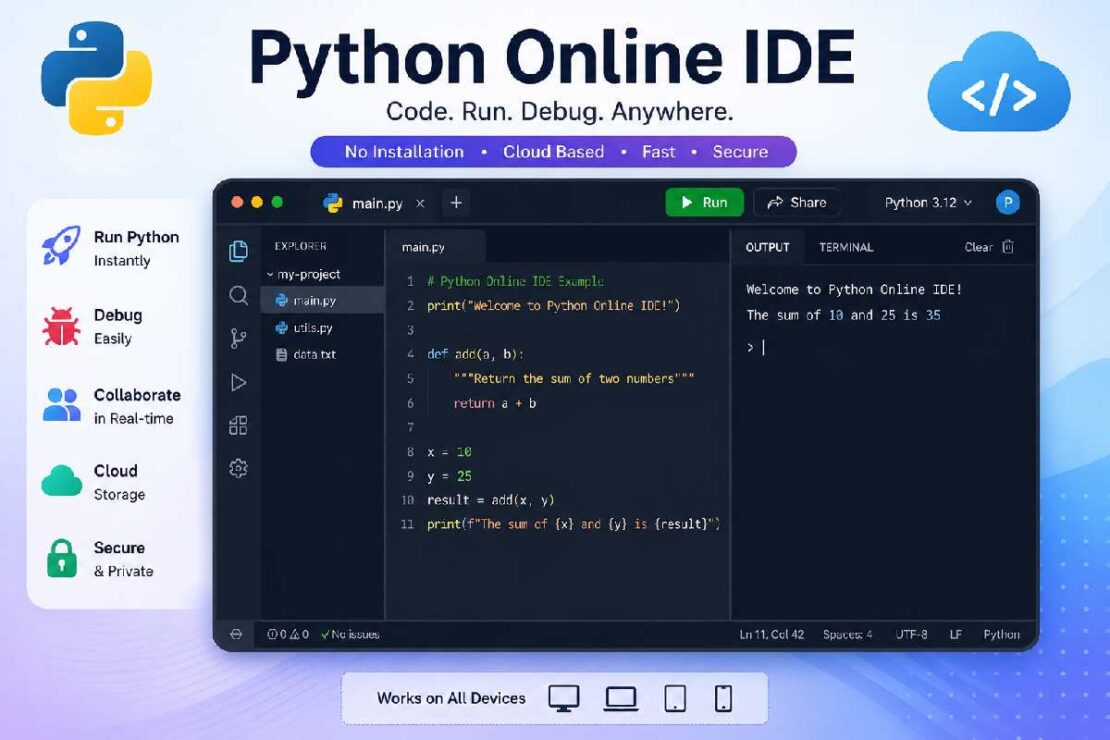
What if you could write Python code without having to install anything on your computer? Good news, that’s exactly what you can do with a web-based Python IDE – so you can write, run, debug, and test code from within your web browser. No more fiddling with your local machine, just happy, clean code, whether you are just starting out, typing your very first print(“Hello, World!”) program, or testing the latest API as a veteran developer.
These days, web-based Python IDEs, such as Replit, Google Colab, and PythonAnywhere, go beyond simple code-editing with AI-powered code auto-completion, debugging tools, Github integration, cloud hosting, package managers, collaboration features and much more- even single-click deployment. If you want to write on-demand, look no further. This guide to the best online Python IDEs will teach you what to look for when choosing, how to use each of them, and a few troubleshooting techniques if things don’t go as planned.
What Is a Python Online IDE?

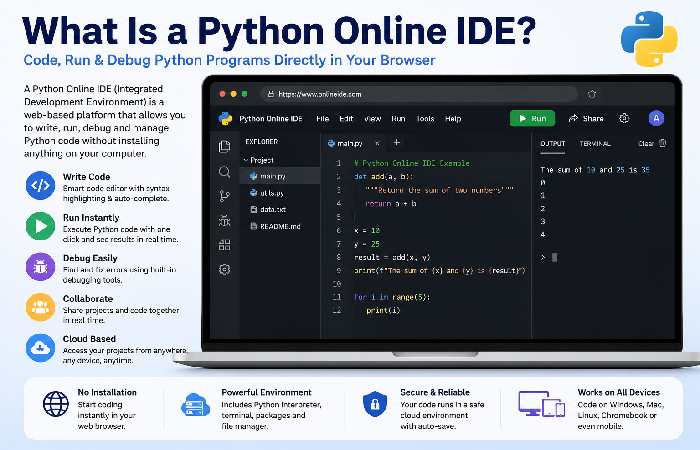
A Python Online IDE is essentially a python setup on cloud servers where you write, execute, debug and organize your python programs on the web through your browser. Unlike having a python on your machine (local python setup), the major difference is that an online python IDE operates within your browser on remote servers.
Hence it is ready to use in just a few seconds.
Most of the modern Python Online IDEs feature a complete package such as: A Python interpreter (i.e. All operations work within the browser) A code editor that includes syntax highlighting A console A debugger A file browser A package manager Git support A handy AI helper to assists in coding Support for collaborations among various people simultaneously Cloud storage Simply put, a Python Online IDE is no different than an online version of a complete integrated development environment (IDE) like VS code or PyCharm, but instead of being run on your local computer it is run on the cloud and accessible via your browser.
Python Online IDE vs Python Compiler vs Python Editor
Many beginners confuse these three terms.
| Feature | Python Online IDE | Online Python Compiler | Python Editor |
|---|---|---|---|
| Write code | ✅ | ✅ | ✅ |
| Run code | ✅ | ✅ | ❌ |
| Debugging | ✅ | Limited | ❌ |
| Multiple files | ✅ | Usually No | Sometimes |
| Package installation | ✅ | Limited | ❌ |
| Terminal | ✅ | No | No |
| Git support | ✅ | No | No |
| AI assistance | Many | Rare | No |
In simple terms
- Editor → Writes code
- Compiler/Interpreter → Runs code
- IDE → Complete development environment
Why Developers Prefer Browser-Based Python IDEs
Online IDEs have become increasingly popular because they remove many traditional setup barriers.
Key benefits include:
No Installation Required
Open a browser and start coding immediately.
Works on Any Device
Windows, macOS, Linux, Chromebook, tablets, and even some smartphones.
Cloud Storage
Projects remain accessible from anywhere.
Collaboration
Multiple developers can edit code together in real time.
AI Coding Assistance
Many cloud IDEs now include AI code completion, explanations, debugging suggestions, and automatic refactoring.
Easy Sharing
Share a project using a single URL.
How Does a Python Online IDE Work?
Most web based IDE’s operate with the following workflow: Browse to the IDE website. New or Open project. Write python in the IDE Editor.
Click Run The python code will either be: Run on a secure cloud server.
Run directly in the browser. Output the result immediately in the IDE console. Save the result/project for future sharing. Many newer web-first IDEs can actually run Python code in your browser through use of WebAssembly to offer higher privacy and greater client side independence.
Key Features to Look for in an Online Python IDE
Not all IDEs provide the same experience. Before choosing one, evaluate these features:
| Feature | Why It Matters |
|---|---|
| Python version support | Access to the latest language features |
| Package installation | Use libraries like NumPy, Pandas, Flask, or Django |
| Debugger | Find and fix bugs efficiently |
| AI coding assistant | Faster development and learning |
| GitHub integration | Version control and collaboration |
| File management | Organize larger projects |
| Cloud storage | Access projects anywhere |
| Terminal | Run commands and manage dependencies |
| Collaboration | Pair programming and classroom use |
| Security | Protect your code and data |
Best Python Online IDEs in 2026
The best Python online IDE depends on your use case. The needs of a student writing simple code differ from the needs of a data scientist developing machine learning models or a web developer building Flask applications. In the next section, we’ll review some of the most commonly used online Python IDEs in 2026.
| IDE | Best For | Free Plan | AI Assistant | Package Support | Collaboration | Debugger | Rating |
|---|---|---|---|---|---|---|---|
| Replit | General Python Development | ✅ | ✅ | ✅ | ✅ | ✅ | ⭐⭐⭐⭐⭐ |
| Google Colab | Data Science & AI | ✅ | Limited | ✅ | ✅ | Limited | ⭐⭐⭐⭐⭐ |
| PythonAnywhere | Web Apps | ✅ | ❌ | ✅ | Limited | ✅ | ⭐⭐⭐⭐☆ |
| GitHub Codespaces | Professional Developers | Limited | ✅ | ✅ | ✅ | ✅ | ⭐⭐⭐⭐⭐ |
| Programiz | Beginners | ✅ | ❌ | Limited | ❌ | ❌ | ⭐⭐⭐⭐☆ |
| JDoodle | Quick Code Testing | ✅ | ❌ | Limited | ❌ | Limited | ⭐⭐⭐⭐☆ |
| OnlineGDB | Debugging Programs | ✅ | ❌ | Moderate | ❌ | ✅ | ⭐⭐⭐⭐☆ |
| Trinket | Education | ✅ | ❌ | Limited | ✅ | ❌ | ⭐⭐⭐⭐☆ |
Top Python Online IDEs Reviewed
1. Replit – Best Overall Python Online IDE
It’s hard to find more features in a cloud IDE than what you can get on Replit. If you love desktop IDEs but hate to install them, Replit is what you are looking for as it runs on your browser.
Best For
- Beginners
- Students
- Freelancers
- Startups
- Full-stack developers
Pros
- No installation required
- AI-powered coding assistant
- Real-time collaboration
- GitHub integration
- Supports hundreds of programming languages
- One-click deployment
- Built-in database support
Cons
- Advanced AI features require a paid plan.
- Heavy projects may consume cloud resources quickly.
Overall Rating: ⭐⭐⭐⭐⭐ (4.9/5)
2. Google Colab – Best for Data Science
Google Colab has the goal of focusing on notebooks, machine learning and research. It is famous among AI students, research and AI engineers because you get free access to GPU and TPU.
Best For
- Machine Learning
- Artificial Intelligence
- Data Analysis
- Research
- Jupyter Notebook users
Advantages
- Free GPU access
- Integrated with Google Drive
- Supports TensorFlow and PyTorch
- Notebook interface
- Easy sharing
Limitations
- Not suitable for large software projects
- Limited debugging tools
- Session timeouts on free accounts
Overall Rating: ⭐⭐⭐⭐⭐
3. PythonAnywhere – Best for Hosting Python Apps
PythonAnywhere combines an online IDE with cloud hosting, allowing developers to build and deploy web applications from a single platform.
Best For
- Django
- Flask
- APIs
- Hosting Python applications
Features
- Linux terminal
- Scheduled tasks
- Virtual environments
- Package installation
- Web app deployment
- MySQL support
Pros
- Great for backend developers
- Simple deployment process
- Beginner-friendly dashboard
Cons
- Limited free resources
- Not optimized for collaborative coding
4. GitHub Codespaces – Best for Professional Teams
GitHub Codespaces provides a Visual Studio Code experience directly in the browser.
It supports enterprise-grade development with Git integration, extensions, containers, and AI-powered GitHub Copilot.
Best For
- Professional software engineers
- Teams
- Open-source contributors
- Enterprise projects
Features
- VS Code interface
- Docker containers
- GitHub repositories
- Terminal access
- Extensions marketplace
- AI coding assistant
Downsides
- Requires GitHub familiarity
- Usage limits on free accounts
5. Programiz Python Compiler – Best for Beginners
Programiz focuses on simplicity.
You simply open the website, write code, and press Run.
No login is required for basic usage.
Ideal For
- Learning Python
- Practicing syntax
- Small coding exercises
- Students
Pros
- Extremely simple interface
- Fast execution
- No installation
- Free
Cons
- Not a complete IDE
- No advanced debugging
- Limited project management
6. JDoodle – Best for Instant Code Execution
JDoodle is perfect when you need to quickly test a Python snippet without creating an account.
Highlights
- Fast execution
- Multiple Python versions
- API access
- Lightweight interface
Best For
- Interviews
- Coding practice
- Small scripts
7. OnlineGDB – Best Free Debugger
Unlike many browser editors, OnlineGDB includes a built-in debugger.
Developers can step through code line by line to identify errors.
Great For
- Debugging
- Academic assignments
- Algorithm practice
- Competitive programming
Which Python Online IDE Should You Choose?
| Use Case | Recommended IDE |
|---|---|
| Complete Beginners | Programiz |
| Learning Python | Replit |
| School & College | Replit |
| Machine Learning | Google Colab |
| Data Science | Google Colab |
| Django Development | PythonAnywhere |
| Flask Projects | PythonAnywhere |
| Enterprise Development | GitHub Codespaces |
| Team Collaboration | Replit |
| Debugging | OnlineGDB |
| Interview Practice | JDoodle |
| Classroom Teaching | Trinket |
Performance Comparison (2026)
Free vs Paid Online Python IDEs
| Feature | Free IDE | Paid IDE |
|---|---|---|
| Code Execution | ✅ | ✅ |
| File Storage | Limited | Larger Storage |
| AI Assistance | Limited | Advanced |
| CPU Resources | Shared | Dedicated |
| Collaboration | Basic | Advanced |
| Deployment | Limited | Full |
| Private Projects | Limited | Unlimited |
| Custom Domains | No | Yes |
| Priority Servers | No | Yes |
For most learners, a free plan is more than enough. Professionals building production applications often benefit from paid plans that include faster resources, private workspaces, and enhanced collaboration features.
Browser Compatibility
Most modern web-based Python IDEs support all major browsers.
| Browser | Supported |
|---|---|
| Google Chrome | ✅ Excellent |
| Microsoft Edge | ✅ Excellent |
| Mozilla Firefox | ✅ Excellent |
| Safari | ✅ Good |
| Brave | ✅ Excellent |
| Opera | ✅ Good |
For the best experience, use the latest version of Chrome or Edge, especially when working with AI-powered features or browser-based development environments.
Real-World Use Cases
Students
- Complete Python assignments
- Practice coding exercises
- Submit projects without software installation
Developers
- Test scripts quickly
- Build APIs
- Collaborate remotely
- Share reproducible environments
Data Scientists
- Analyze datasets
- Train machine learning models
- Visualize data using notebooks
Educators
- Conduct live coding sessions
- Share interactive lessons
- Eliminate classroom setup issues
Interview Candidates
- Solve coding challenges
- Practice algorithms
- Debug solutions in real time
Python Online IDE Trends in 2026
Cloud development continues to grow as browser-based tools become more powerful. Key trends include:
- AI-assisted code generation and debugging integrated directly into IDEs.
- Browser-based development environments that closely match desktop IDE performance.
- Increased adoption of cloud workspaces for remote teams and education.
- Better security through isolated execution environments.
- Faster startup times using containerized and serverless infrastructure.
- Seamless GitHub and cloud deployment integrations.
- Growing support for collaborative pair programming and live code sharing.
These trends are paving the way for online Python IDEs to emerge not only as a reliable way for aspiring Python beginners to start learning Python, but also as a reliable solution for software professionals as well.
Step 1: Selecting an online python IDE
Select an IDE based on your needs:
- Replit – General-purpose coding and collaboration
- Google Colab – Data science and machine learning
- PythonAnywhere – Web application development
- Programiz – Learning Python basics
- JDoodle – Quick code execution
- GitHub Codespaces – Professional development
Step 2: Create an Account (Optional)
Many platforms allow you to start coding immediately. Creating an account lets you:
- Save projects
- Sync files across devices
- Share code with others
- Access premium features
Step 3: Create a New Python Project
Most IDEs provide a New Project or New Python File option.
Example:
print("Hello, World!")Click Run, and the output appears in the console.
Step 4: Install Python Packages
Many online IDEs support installing libraries directly.
Examples include:
- NumPy
- Pandas
- Flask
- Django
- Requests
- Matplotlib
Some platforms provide a package manager, while others allow installation through a built-in terminal using pip.
Step 5: Save and Share Your Code
Most cloud IDEs let you:
- Save projects automatically
- Export files
- Connect to GitHub
- Share projects using a public URL
This makes collaboration much easier than sending code files by email.
How to Debug Python Code Online
Debugging helps identify and fix errors quickly.
Modern browser-based IDEs include features such as:
- Breakpoints
- Variable inspection
- Call stack visualization
- Step Into
- Step Over
- Step Out
- Console output
- Error highlighting
Example
number = 10
print(numbr)
Output:
NameError: name 'numbr' is not definedThe IDE highlights the incorrect variable name, making it easy to identify the typo.
Common Python Errors and Solutions
| Error | Cause | Solution |
|---|---|---|
| SyntaxError | Invalid Python syntax | Check missing brackets, quotes, or colons |
| IndentationError | Incorrect spacing | Use consistent indentation (4 spaces recommended) |
| NameError | Variable not defined | Check spelling and define the variable first |
| ModuleNotFoundError | Missing package | Install the required library using pip if supported |
| TypeError | Wrong data type | Verify operations and convert types where needed |
| IndexError | Invalid list index | Ensure the index exists before accessing it |
| ZeroDivisionError | Division by zero | Validate input before performing division |
| FileNotFoundError | File path incorrect | Verify file location and permissions |
Troubleshooting Python Online IDE Issues
Even the best cloud IDEs occasionally run into problems. Here are common issues and their fixes.
Problem: Code Doesn’t Run
Possible causes:
- Internet connection issues
- Temporary server outage
- Syntax errors
- Unsupported Python version
Solution
- Refresh the page
- Check the IDE’s status page
- Review the error message
- Try running the code again
Problem: Package Installation Fails
Possible reasons:
- Free plan limitations
- Unsupported library
- Storage limits
Solution
- Confirm the package is available
- Check documentation for supported libraries
- Upgrade to a paid plan if necessary
Problem: Slow Execution
Large programs may take longer to execute due to shared cloud resources.
Solutions
- Close unused browser tabs
- Optimize your code
- Restart the workspace
- Consider upgrading if you regularly run resource-intensive tasks
Problem: Browser Freezes
This usually happens when running infinite loops or memory-heavy programs.
Solutions
- Stop execution
- Refresh the browser
- Review your loops and recursion
- Test with smaller datasets
Problem: Lost Progress
This often occurs when working without an account.
Solutions
- Enable auto-save
- Create an account
- Connect to GitHub or another version control system
- Download backups regularly
Best Practices for Using a Python Online IDE
Following a few simple habits can improve productivity and reduce errors.
- Organize projects into folders.
- Use meaningful file names.
- Comment complex code.
- Save work frequently.
- Keep dependencies updated.
- Test code in small sections.
- Use version control such as Git.
- Avoid hardcoding sensitive information like passwords or API keys.
- Learn keyboard shortcuts to work more efficiently.
Security and Privacy Tips
While online IDEs are convenient, it’s important to protect your code and data.
Do
- Enable two-factor authentication (2FA).
- Use strong, unique passwords.
- Keep private repositories private.
- Review sharing permissions before sending links.
- Remove secrets from source code.
Don’t
- Store API keys directly in code.
- Upload confidential company data to public workspaces.
- Share private project URLs without checking permissions.
- Assume all online environments are isolated from other users.
For production or enterprise applications, choose providers that offer secure, isolated environments and compliance with relevant security standards.
Frequently Asked Questions (FAQ)
What is the best Python online IDE?
Replit is probably the best option for most people. It’s a good blend of ease of use, collaboration features, AI help, and the ability to deploy. Google Colab is often preferred by data scientists and PythonAnywhere is a common choice for web developers.
Can I run Python online for free?
Yes, there are several free options available. Free versions typically allow you to write and run Python code in your browser. These free plans are best for learning, practice, and small projects.
Do I need to install Python?
No, you do not. An online Python IDE provides a ready-to-use environment so you don’t have to download or install anything on your computer.
Can I install Python libraries online?
Most full online IDEs allow you to install standard libraries like NumPy, Pandas, Flask, Django, Requests and more. Some platforms and subscription tiers have limitations.
Which online Python IDE is best for beginners?
Programiz is an excellent option for beginners. Replit is another great choice due to its intuitive interface and rapid start.
Can I build web apps in an online IDE?
Yes. Many online IDEs, such as PythonAnywhere and GitHub Codespaces, support web frameworks like Flask and Django.
Is an online Python IDE safe?
Most well-established online IDE providers have robust security practices. Use secure online tools and avoid storing credentials within your code or uploading sensitive files. Remember to use strong passwords and two-factor authentication.
Can I use a Python online IDE on my phone?
While many browser-based online Python IDEs are technically accessible on a mobile device, coding on a small screen with a virtual keyboard can be quite frustrating. A desktop or laptop is recommended for the best coding experience.
Conclusion
The need for a Python online IDE is rapidly growing among learners, educators, and professional developers alike. Cloud-based IDEs remove the hassle of installing Python and can help you get to developing much more quickly and make sharing your projects a breeze.
Regardless of whether you are starting to learn how to write your first lines of Python, working on a Django app, trying to work with big data or collaborate with a remote team on a project, there is an online IDE for you.
Simplicity is usually key for those starting to learn Python, while skilled developers might look for more integrated AI-supported programming and Git capabilities, robust debugging support, and deployment features to help enhance their productivity.
The continuous development of cloud development environments and AI supported programming make browser-based Python IDEs an ever more viable option compared to traditional desktop development environments.
for more information : https://en.wikipedia.org/wiki/Python_(programming_language)