If you’re searching for how to cancel Liven subscription, the most important thing to know is that the cancellation steps depend on where you originally subscribed. A subscription purchased through the Liven website is managed differently from one purchased through Apple or Google Play.
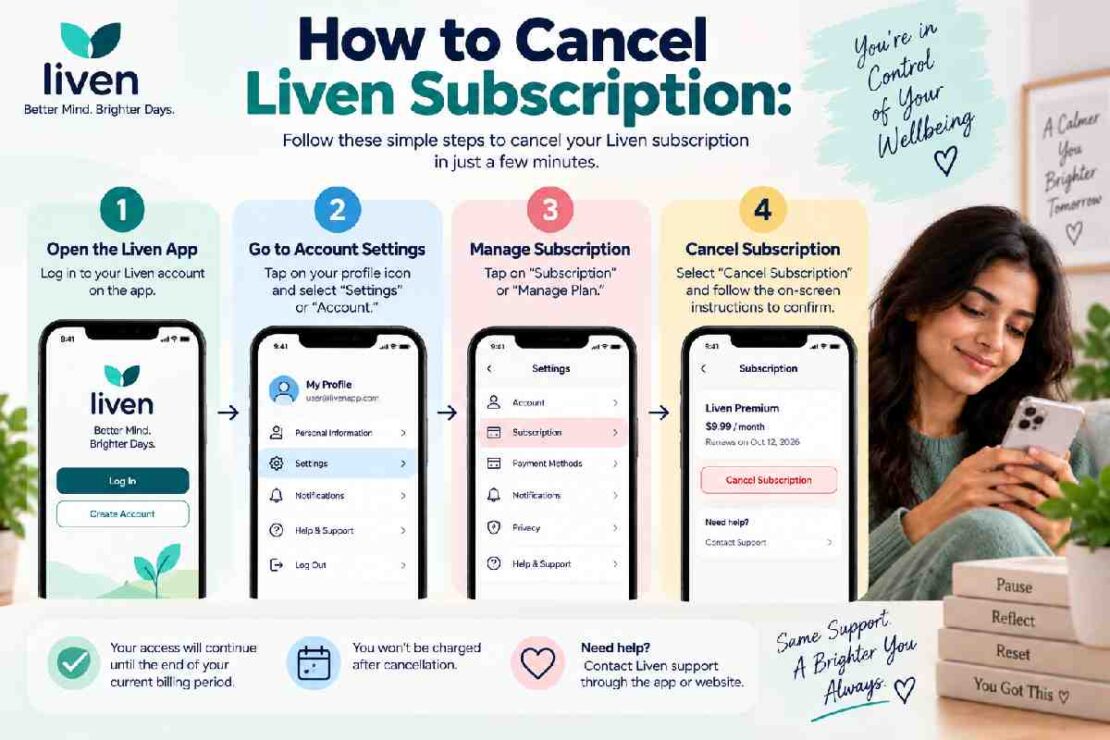
For website subscriptions, Liven’s current 2026 instructions say to open the app, go to Profile → Settings → Membership, select Cancel, continue through the confirmation screens, and make sure you receive a cancellation confirmation. Apple subscriptions must be canceled through your Apple account, while Google Play subscriptions are managed through Google Play.
Here’s exactly what to do.
How to Cancel Liven Subscription at a Glance
| Where you subscribed | Where to cancel |
|---|---|
| Liven website | Liven app → Profile → Settings → Membership |
| Apple App Store | iPhone Settings → Apple Account → Subscriptions |
| Google Play | Google Play → Payments & subscriptions → Subscriptions |
| Can’t find subscription | Check where the original payment was made |
| Want a refund | Contact Liven Support or the relevant app store |
Important: Simply deleting the Liven app from your phone does not cancel your subscription.
Liven specifically states that website subscriptions must be canceled through the Liven app, while Apple subscriptions can only be managed through your Apple account.
How to Cancel Liven Subscription Through the Website
If you subscribed directly through Liven, follow these steps:
- Open the Liven app.
- Log in to the account associated with your subscription.
- Open your Profile.
- Tap Settings.
- Select Membership.
- Tap Cancel.
- Review the next screen carefully.
- If Liven offers an option to pause your subscription or enable renewal reminders, continue scrolling.
- Tap Cancel again.
- Complete the confirmation steps.
Liven’s current Help Center says you should see a confirmation message or receive a confirmation email after successfully canceling.
Don’t stop after the first cancellation screen
This is an important detail.
The current Liven cancellation flow can show additional options after you initially select Cancel. Make sure you continue through the process until the cancellation is actually confirmed.
If you close the app before completing the final confirmation, don’t assume the subscription has been canceled.
How to Cancel Liven on iPhone or iPad
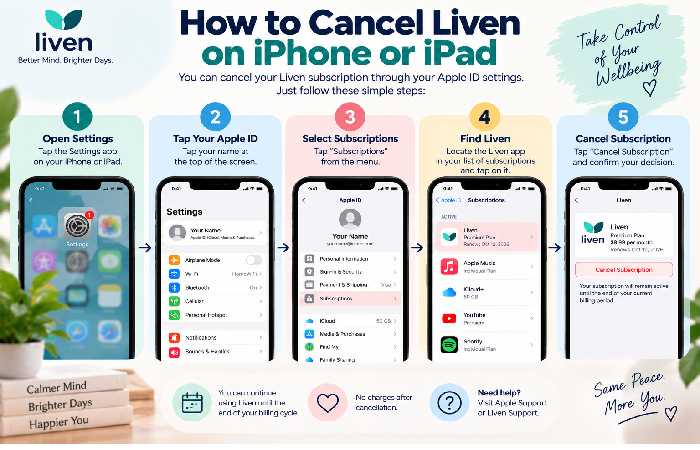
If you purchased Liven through the Apple App Store, you don’t cancel it from the Liven app.
Instead:
- Open Settings on your iPhone or iPad.
- Tap your name at the top.
- Select Subscriptions.
- Find Liven.
- Tap Cancel Subscription.
- Confirm the cancellation.
Liven says App Store subscriptions can only be managed through the Apple account associated with the purchase.
What if Liven isn’t listed under Apple Subscriptions?
If you can’t find Liven in your Apple subscriptions, don’t immediately assume you’re not subscribed.
You may have purchased the subscription directly through Liven’s website.
Liven explains that website subscriptions will not appear in your Apple App Store subscription list. In that situation, you need to manage the subscription through Liven’s own Membership section.
Check your purchase confirmation or bank statement to determine where the original transaction was processed.
How to Cancel Liven on Android
If you subscribed through Google Play:
- Open the Google Play Store.
- Tap your profile icon.
- Select Payments & subscriptions.
- Tap Subscriptions.
- Select Liven.
- Tap Cancel subscription.
- Follow the instructions to confirm.
These are the current steps provided by Liven’s Help Center.
As with Apple, a subscription purchased directly through Liven’s website won’t necessarily appear in Google Play.
When Should You Cancel Liven?
Liven currently recommends canceling at least 24 hours before the end of your current billing period or trial to avoid the next charge.
Don’t wait until the last few minutes of a trial.
A safer approach is to cancel as soon as you’ve decided you don’t want to continue.
Example
Suppose your trial ends on Friday.
Instead of waiting until Friday evening:
Wednesday: Decide whether you want to continue.
Thursday: Cancel if you don’t want another charge.
After cancellation: Confirm that your subscription shows as canceled.
This gives you some breathing room if the cancellation process doesn’t work as expected.
How to Cancel the Liven Free Trial
The Liven free trial is canceled according to the platform where you started it.
Apple trial
Go to:
Settings → Your Name → Subscriptions → Liven → Cancel Subscription
Google Play trial
Go to:
Google Play → Profile → Payments & subscriptions → Subscriptions → Liven → Cancel
Liven website trial
Use:
Liven → Profile → Settings → Membership → Cancel
Liven says eligible trials and subscriptions can automatically renew, so cancel before the end of the trial if you don’t want to be charged.
Does Deleting the Liven App Cancel the Subscription?
No.
Deleting the app removes the application from your device. It does not necessarily cancel the billing agreement.
For example, if you subscribed through Apple and then deleted Liven, your Apple subscription can remain active.
The same applies to Google Play subscriptions.
The correct approach is to cancel through the platform that processed your subscription.
This is one of the most important things to remember:
Uninstalling Liven ≠ canceling your subscription.
What Happens After You Cancel Liven?
Canceling your subscription generally stops the next automatic renewal.
You don’t normally lose your paid access immediately.
Liven’s current cancellation instructions say that after cancellation, access remains available until the end of the current billing period.
For example:
Subscription expires: September 30
You cancel: September 10
Access: Normally continues until September 30
Next renewal: Canceled
This means there’s usually no reason to wait until the final day to cancel.
How to Stop Liven Automatic Renewal
If your goal is specifically to stop Liven automatic renewal, cancel the active subscription before the next billing date.
The cancellation method depends on your purchase method:
| Purchase method | Stop automatic renewal |
|---|---|
| Liven website | Cancel through Membership |
| Apple | Cancel through Apple Subscriptions |
| Google Play | Cancel through Google Play Subscriptions |
After canceling, check that you have received a confirmation or that the subscription status reflects the cancellation.
If possible, save a screenshot of the confirmation page or keep the confirmation email.
That can be useful if a billing dispute arises later.
How to Request a Liven App Refund
Canceling a subscription and requesting a refund are two different things.
If you’ve already been charged, canceling the subscription prevents future renewal but doesn’t automatically guarantee that the previous payment will be refunded.
Liven’s current refund instructions say to contact its Support Team and provide:
- The email address associated with the purchase
- Details about the charge
- Any relevant information that can help the team review the transaction
Liven says refund requests are reviewed individually under its 30-day money-back policy.
What to include in a refund request
A clear request should include:
Account email: The email associated with Liven
Charge date: When the payment occurred
Amount: How much you were charged
Subscription: The plan you purchased
Reason: A short explanation of why you’re requesting a refund
If you have a receipt or payment confirmation, keep it available.
What If You Were Charged After Canceling?
This is one of the more important Liven complaints to understand.
Recent App Store reviews include users who say they were charged after attempting to cancel, while Liven’s responses generally direct users to its support team so the account history and cancellation status can be reviewed.
These are individual user reports, not proof that every cancellation fails.
If this happens to you, don’t simply cancel again and ignore the charge.
Instead:
- Check where you originally subscribed.
- Verify the subscription status.
- Find your cancellation confirmation.
- Check the date and amount of the charge.
- Contact Liven Support.
- Request a review of the charge.
- Keep copies of relevant emails and screenshots.
Liven’s current support documentation lists support@theliven.com as a contact option and says its average response time is around 24 hours.
Why Can’t I Find My Liven Subscription?
There are several possible reasons.
You subscribed through the website
Website subscriptions won’t appear in Apple’s or Google Play’s subscription menus.
You’re using a different account
You may have signed up with a different email address.
Try searching your inbox for your original Liven purchase confirmation.
You subscribed through another platform
Check both Apple and Google Play if you’re unsure where you purchased the subscription.
The subscription has already been canceled
If you can’t find an active subscription, check your previous confirmation emails and payment records.
How to Contact Liven Customer Support
If you can’t cancel the subscription yourself, Liven provides several support options.
Its current Help Center says you can contact support by email at support@theliven.com. It also provides live-chat options through the app and Help Center.
For a cancellation problem, provide as much useful information as possible:
- Account email
- Subscription platform
- Purchase date
- Charge amount
- Cancellation date
- Screenshots
- Confirmation emails
- Transaction information
The more specific your request is, the easier it should be for support to identify the account and transaction.
How to Delete Your Liven App Account
If you want to stop using Liven completely, you may also want to delete your Liven account.
However, don’t confuse account deletion with subscription cancellation.
If you have an active subscription, cancel the subscription first.
Liven’s current account-deletion instructions are:
- Open the Liven app.
- Log in if necessary.
- Open Settings.
- Select Delete Account.
- Confirm the deletion request.
- Follow the instructions to complete the process.
Liven says account deletion is permanent and associated data will be removed once the deletion process is completed. It also says users receive a confirmation email when the process is complete.
Cancellation Troubleshooting
If you’re having trouble canceling Liven, work through this checklist.
Problem: The Cancel button isn’t visible
Try: Check that you’re in the correct Membership section and logged into the account associated with the subscription.
Problem: Liven isn’t listed in Apple subscriptions
Try: You may have subscribed through Liven’s website. Check your purchase confirmation and Liven Membership settings.
Problem: Liven isn’t listed in Google Play
Try: Check whether the subscription was purchased directly through Liven.
Problem: You canceled but received another charge
Try: Check the cancellation date and confirmation, then contact Liven Support with the payment details.
Problem: You want a refund
Try: Contact Liven Support and provide your purchase email and charge information. Refunds are reviewed under Liven’s stated refund policy.
Problem: You deleted the app but are still being charged
Try: Deleting the app doesn’t cancel the subscription. Check Apple, Google Play, or your Liven Membership settings depending on where you subscribed.
Liven Cancellation Checklist
Before you consider the process finished, check all of these:
- I know where I originally subscribed
- I opened the correct subscription settings
- I completed the final cancellation step
- I received a confirmation
- I checked my subscription status
- I saved the confirmation
- I checked my next billing date
- I requested a refund separately if necessary
- I deleted my account only if I no longer want to use Liven
This takes only a few minutes but can save a lot of confusion later.
Liven Cancellation Methods Compared
| Method | Difficulty | Where to cancel | Future renewal stopped? |
|---|---|---|---|
| Liven website | Easy | Liven Membership | Yes, after confirmation |
| Apple | Easy | iPhone/iPad Subscriptions | Yes |
| Google Play | Easy | Google Play Subscriptions | Yes |
| Delete app | Not applicable | Phone | No |
| Delete account | Separate process | Liven Settings | Should not be treated as subscription cancellation |
The key takeaway is that your payment platform determines where you need to cancel.
What Should You Do Before Canceling Liven?
If you’re not sure whether you want to cancel permanently, check your current subscription first.
Liven’s cancellation flow may present options such as pausing the subscription or enabling reminders about future charges.
If you simply need a break, pausing may be worth considering.
If you’re certain you don’t want to continue paying, complete the cancellation process and make sure you receive confirmation.
Final Verdict: How to Cancel Liven Subscription
The answer to how to cancel Liven subscription depends on where you purchased it.
If you subscribed through the Liven website, go to:
Profile → Settings → Membership → Cancel
If you subscribed through Apple, use:
Settings → Your Name → Subscriptions → Liven → Cancel Subscription
If you subscribed through Google Play, use:
Google Play → Profile → Payments & subscriptions → Subscriptions → Liven → Cancel
Liven recommends canceling at least 24 hours before the end of your billing period or trial to avoid the next charge.
If you’ve already been charged, cancellation and refund requests are separate. Liven’s current refund policy says requests are reviewed individually under its 30-day money-back policy.
And remember: deleting the Liven app does not cancel your subscription.
If you’re finished with Liven altogether, you can separately request account deletion through the app’s Settings menu.
Frequently Asked Questions
How do I cancel my Liven subscription?
The method depends on where you subscribed. Website subscriptions are canceled through Liven’s Membership settings, Apple subscriptions through Apple Settings, and Google Play subscriptions through Google Play.
Can I cancel Liven from the app?
Yes, if you subscribed through the Liven website. Go to Profile → Settings → Membership and follow the cancellation process. Apple subscriptions must be canceled through Apple.
Does deleting the Liven app cancel my subscription?
No. Uninstalling the app does not cancel an active subscription.
How do I stop Liven automatic renewal?
Cancel your active subscription through the platform where you originally purchased it. Liven recommends doing this at least 24 hours before the end of the billing period or trial.
How do I cancel my Liven free trial?
Cancel it through the platform where you started the trial. For Apple, use Apple Subscriptions; for Google Play, use Google Play Subscriptions; for a Liven website trial, use Liven’s Membership settings.
Can I get a refund from Liven?
You can request a refund by contacting Liven Support. Liven says refund requests are reviewed individually under its 30-day money-back policy.
What if I can’t cancel Liven?
First determine where you purchased the subscription. If you’re still unable to cancel it, contact Liven Support with your account email and subscription details.
Why can’t I find Liven in my Apple subscriptions?
You may have subscribed directly through the Liven website. Website subscriptions don’t appear in Apple’s subscription settings.
Will I lose access immediately after canceling?
No. Liven says access normally remains available until the end of your current billing period.
How do I delete my Liven account?
Open Liven, go to Settings, select Delete Account, and follow the confirmation steps. Liven says account deletion is permanent.