
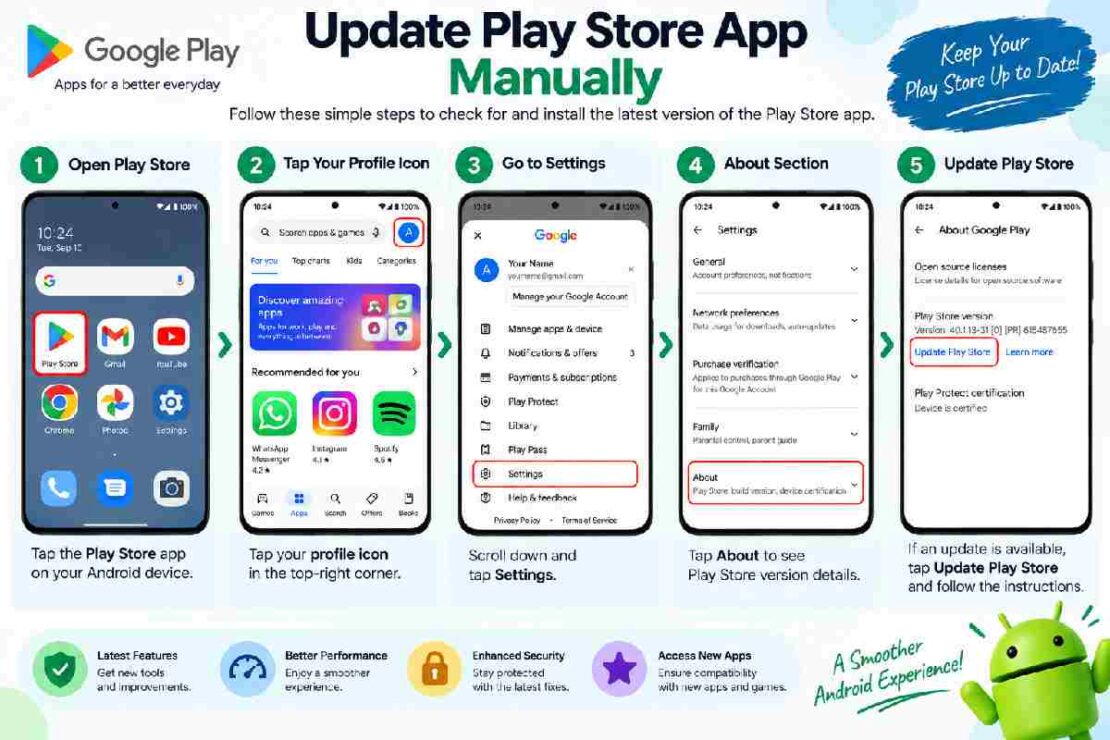
To update Google Play Store app manually you can do that from the Google Play Store itself in the settings of it. Which is a pretty useful feature when Google Play Store doesn’t update automatically or if you want to make sure that you are using the latest version. And the process is very simple so even you can do that.
Why Update the Google Play Store Manually?
Google Play Store tips, tricks and guides What can you do? We can update the Play Store to improve performance, fix bugs, make the software safer or change the way apps are downloaded and added to your device. In most cases the Play Store updates automatically, but if you suspect your version is old or outdated it can be worth manually checking for an update.How to Update Play Store App Manually
Follow these steps on your Android phone or tablet.
1. Launch Play Store Open Google Play Store from your app drawer or Home screen. 2. Tap Your Profile picture Tap your profile picture in the top-right corner. 3. Go to Settings Tap Settings on the menu, then tap About in the expanded menu.
4. Find Play Store version Find Play Store version.
Tap it to see if you can update to a newer version. If Play Store finds that you’ve got the latest update, no newer version will be available.
Manual vs Automatic Play Store Updates
Both methods have advantages depending on how much control you want.
| Method | Best For | Main Advantage |
|---|---|---|
| Manual check | Users who want control | Lets you check whenever needed |
| Automatic update | Everyday users | Requires little maintenance |
| Manual APK installation | Advanced users | Can install a specific version |
For most beginners, the built-in Play Store update option is the safest choice. Installing APK files from unofficial websites can introduce security risks, so it should not be the first troubleshooting method.
What If the Play Store Won’t Update?
If the Play Store does not update after checking manually, start with basic troubleshooting.
First, make sure your phone has a reliable internet connection and enough free storage. Then restart your device and try checking again.
You can also clear the Google Play Store cache:
Settings → Apps → Google Play Store → Storage & cache → Clear cache
After clearing the cache, reopen the Play Store and check the version again.
If the problem continues, check whether your Android system has pending software updates. Keeping Android current can help maintain compatibility with Google services and apps.
When Should You Manually Check for Updates?
You usually do not need to check the Play Store every day. Automatic updates can handle routine maintenance for most users.
A manual check makes sense when:
- The Play Store appears outdated.
- App updates are not working correctly.
- A new Play Store feature is expected.
- You are troubleshooting download or update problems.
- The Play Store is behaving unusually.
Frequently Asked Questions
How do I update Google Play Store manually?
In the Play Store, tap your profile picture, then tap Settings About Play Store version to see if an update is available.
Can I force my Play Store to update?
You can manually check for an update from the About section of the Play Store, and if an update is available from Google for your device, it will be automatically downloaded.
How do I update Play store manually?
How to manually update Google Play Store?
Open Google Play Store. Tap on your profile icon (top right corner).
Now go to Settings>About.
Under Play Store version, check for an update.
Is it OK to update Play Store?
Whenever an update is available, you’ll get a notification and the Play Store will update itself.
So, there’s no reason to download and install the latest version manually. Make sure to get your hands on the latest version directly from the Google Play Store.
How do I know if Play Store is updated?
Under Play Store version, check for an update.
The Play Store will tell you whether there’s an update or not.
Final Takeaway
How to update Play Store app manually Upgrading Play Store app from settings is a piece of cake. You need to open Google Play Store and head to Settings About, then you can see the Play Store version. If there is a newer version, Google will automatically update it for you.
Not Working? Verify your connection and storage, reboot your device, and clear the Play Store cache if it is still not functioning.