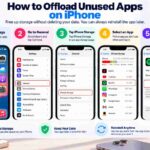
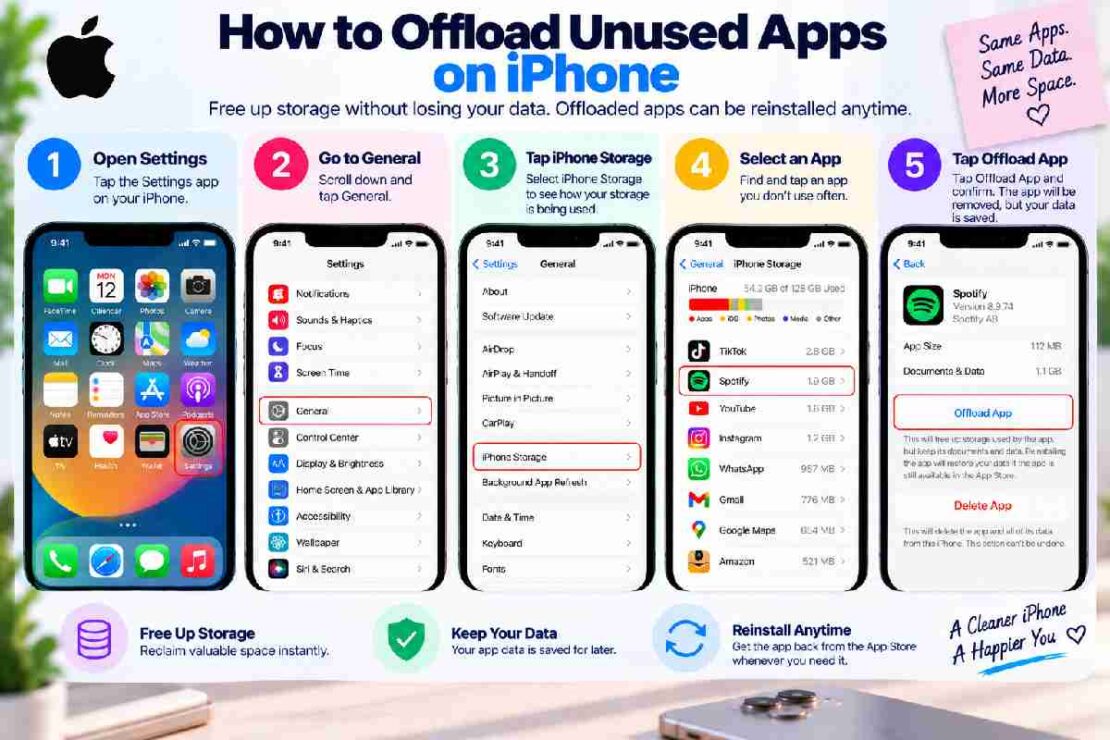
How To Offload Unused Apps On iPhone Free up storage on your iPhone without actually deleting the app and thus, losing any of its data by using offloading. Offloading an app remove the app file and stores the document along with the application’s data which later can be downloaded from the App Store and accessed again if required. So, if you’d like to manage storage space of your phone by doing so, follow this guide:
What is to Offload Unused Apps?

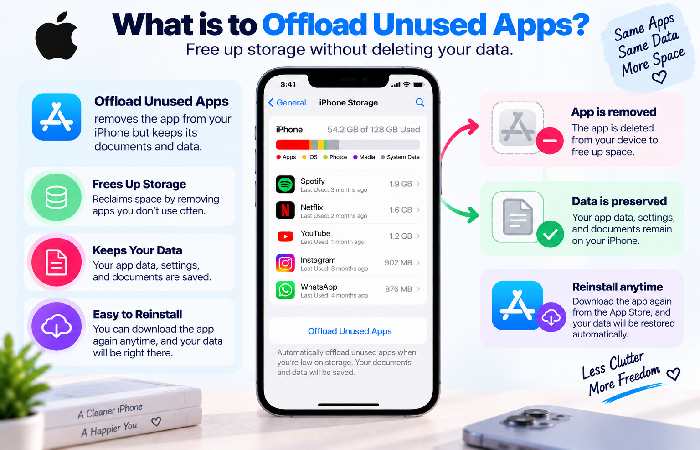
How it differs to delete an application: when you delete an application, the data related to it is lost too, but in Offload Unused Apps on iPhone, the document and data relating to the app is not lost. That is one useful feature to free up space. Apple has implemented this function to auto-uninstall apps from the user’s device if they run short on space.
Offload vs Delete: The Comparison Chart
| Function | Offload App | Delete App |
| :—————- | :—————— | :—————— |
| Remove app files | Yes | Yes |
| Documents and data | No | Often not |
| App icon | On homescreen | Not |
| Reinstallation | Yes | Yes, data restore necessary |
| Uses: | Rarely-used apps | Unneeded applications |
How to Enable Auto Offload Unused Apps On Your iPhone
To enable auto offloading for applications that haven’t been used for a long time: Go to ‘Settings’ > ‘Apps’ > ‘App Store’ > Toggle on ‘Offload Unused Apps’. Once you turn on ‘Offload Unused Apps’, your iPhone will delete seldom-used apps to save space. The corresponding files and data will be safe, right on the handset.
Note: That option will serve the best purpose if you keep installing apps but seldom get to play them; also keep in mind that that app could download whenever the storage is cleared by it and you turn it on from the setting again or click it.
How to Manually Offload an App
If you intend to specify or select specific applications to offload manually, try this: From Settings, get to General> iPhone storage and let that show you the space each app occupies. Now, select the particular app that you think could be discarded and tap on “Offload App.” Lastly, tap on “Offload App” one more time.
Check Remaining Storage on Your iPhone
To find out which app is using what space; Settings> General > iPhone Storage will help you know it, from the list of apps you will have graph at top indicating of storage utilization, followed by that, different applications showing space they are occupying.
What will Happen when You Offload an App?
App is not in working use anymore; the icon would remain on your screen, probably with a cloud image next to it, from which you could download the app once more with a single click. You also can retrieve and download your app back manually by navigating from Settings, or by searching the App Store.
Apps to Consider Offloading:
Gaming apps, shopping apps or travel apps might use up a lot of space. Be sure not to delete the data of any app from the working use that will affect it from loading the settings, otherwise you will not be able to retrieve back even the app’s document that you could retrieve. Avoid offloading if your internet is not reliable as it is one utility which will not function then and there.
Disable Offload Unused Apps on iPhone
If your iPhone is always undoing your job by self-uninstalling applications that you frequently use, it’s now time for you to revoke that control. Go to Settings > Apps > App Store > switch ‘Offload Unused Apps’ off. You can always manually offload apps if need be.
Frequently Asked Questions About Offloading Apps:
Does downloading offloaded applications cause deletion of their documents and files?
No. As already discussed, when the document is retained, deleting the app can just make it so that it’s only removed out of access.
Is Offloading Superior To Deleting?
Offloading is ideal if you will only use an app briefly and perhaps once it becomes necessary again, and want to continue accessing the document. On the other hand, deleting is appropriate if there is no purpose and reason for it to ever come back to your mobile phone.
How Do I Restore My Offloaded Apps?
By tapping on the icon once again, it re-download the app on your iPhone. Or alternatively you will require to get those apps installed from iPhone Storage or App Store again.
Can the deleted storage space be regained from the application download process?
Yes. Deleting that app’s file will leave the storage unused and save space on that device; meanwhile if an app is offloaded then application data might continue being accessed.