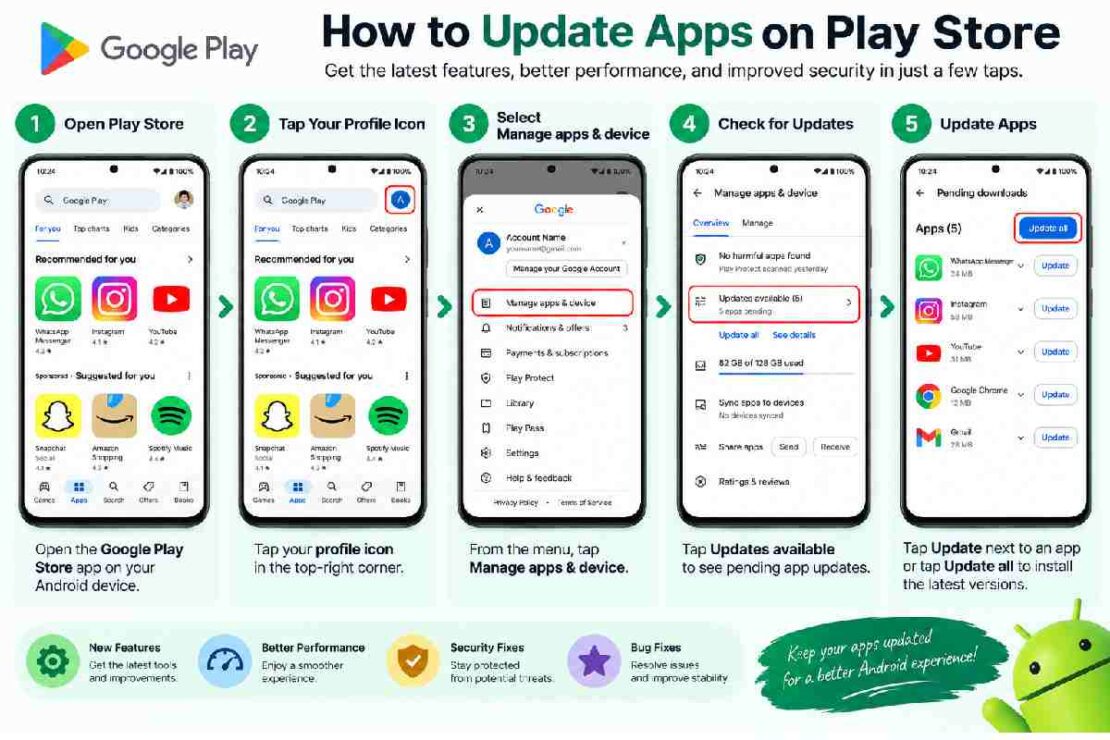
How to Update Apps on Play Store: Update Apps in a Few Taps Few Taps to Know Updating your Android Apps not only enables you to get new features but also ensures they are stable, secure & faster. How to update Apps on Google Play Store: Update apps individually Update all at the same time Enable auto updating.
How to Update Apps on Play Store Step by Step
Here’s how to update an app manually: On your phone, open the Play Store app. At the top right, tap your profile picture Manage apps & device. Under Updates available, tap See details.
Select an app you want to update. Tap Update for an app that is individually updateable. Or tap Update all for apps that are ready to be updated.
Can You Update Apps on Play Store Automatically?
Yes. The simplest method to keep your apps up to date is to enable automatic updates.
Navigate to:
Play Store profile picture Settings Network preferences Auto-update apps
You can select something like Update over Wi-Fi only or Update over Wi-Fi and mobile data. Google provides a limited-mobile-data option for some users, too.
Most of us can benefit from the simple option of Wi-Fi-only updates, as it helps prevent any accidental use of mobile data.
How to Update One App Only
No, you don’t have to update all apps Open Play Store Profile Manage apps & device Manage, tap on the app and check if there is an Update button. It’s useful if you are only interested in updating one particular app for new features and bug fixing. Is It Safe To Update Apps?
Yes, updating apps from the Google Play Store is safest. Updates may be to fix bugs, security reasons, new features, or improved functionality. Google will often even have you install a critical security update if you don’t normally do so.
Play Store Apps Not Updating? Try These Fixes
If an app will not update:
- Check your Wi-Fi or mobile connection.
- Make sure your phone has enough free storage.
- Restart the device.
- Check that your Google account has no sign-in errors.
- Try updating the app individually instead of using Update all.
- Check whether the Play Store itself needs an update.
Google recommends checking the Play Store’s own version under Profile → Settings → About → Update Play Store.
If problems continue, clearing the Google Play Store cache is another troubleshooting option documented by Google.
Manual vs Automatic App Updates
| Method | Best for | Main benefit |
|---|---|---|
| Update individually | Selective users | Maximum control |
| Update all | Many pending updates | Fast and convenient |
| Auto-update over Wi-Fi | Most users | Convenient with data control |
| Auto-update over mobile data | Large data plans | Updates anywhere |
Frequently Asked Questions
Can I update all apps at once?
Open Google Play Store Profile Manage apps & device See details Update all.
Can I update apps without Wi-Fi?
Do I need Wi-Fi to update Play Store? Yes. Play Store allows some devices and certain settings to update apps over mobile data but Wi-Fi is more frequently used. Why is my apps not updating?
It’s possible that your device has an issue connecting to the internet, there’s no room on your device, there’s an account issue, or there is a minor issue with the Play Store. Should I keep auto-updates on?… Should I turn on auto-updates?
Final Takeaway
The quick way to update Android apps Play store Profile Manage apps & device Update all To keep your apps current automatically (without you having to do anything) enable auto-updates from the Play Store (if it isn’t turned on already). Update app won’t open.
How do I update an app that won’t update?
Ensure your device is connected to the internet, has enough storage, has the latest version of the Google app installed and has the latest version of the Google Play Store installed.
Then, if an app isn’t updating, try these tips.