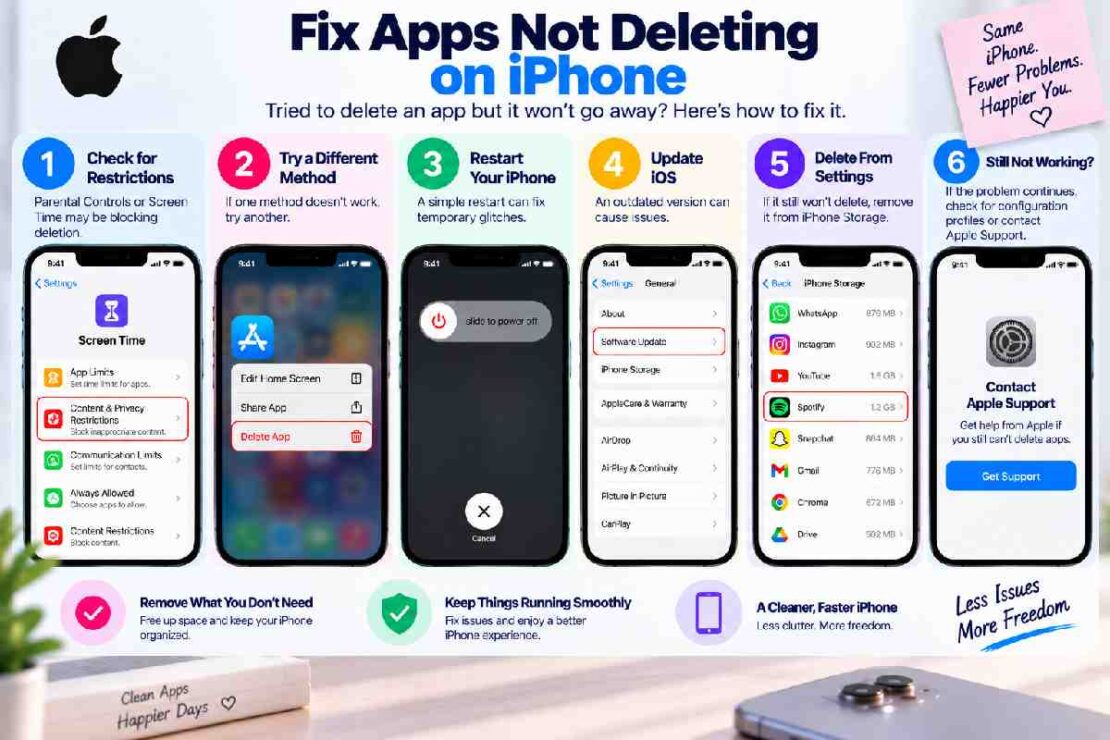
Fixing apps not disappearing from an iPhone when they can’t be deleted can be extremely frustrating, especially when the delete options are no longer present. Typically, this lack of prompt for deletion can result from issues with restrictions, iPhone software problems, orsimply selecting incorrect deletion method. Fortunately, your issue can be solved relatively quickly within a few minutes.
Here are the easiest and most logical ways to fix the problem
, in a logical order:Why you can’t delete an app on an iPhoneBefore you find out why the app is unable to be deleted, let’s establish possible causes:App deletion is restricted via Screen TimeThe delete option for the app isn’t the correct one you selectediPhone may have a bugApp might be preinstalled on your iPhone and thus can not be removedIs there an update needed for your iPhone?
Is your iPhone supervised and has profiles on the it that’s blocking the deleting ability
1. Check Your Screen Time RestrictionsFirst
, look into your iPhone’s “Screen Time” feature. This could be blocking your ability to delete apps. Here’s how:Go to Settings -> Screen Time -> Content & Privacy Restrictions -> iTunes & App Store Purchases -> Deleting Apps, and make sure that the “Allow” option is toggled ON.
After this, return to your home screen, and attempt to delete the app again.
Why this helps: Your iPhone may block the deleting of apps by restricting access to that feature on your iPhone; with this setting on, your iPhone will allow the ‘delete app’ prompt and then proceed to delete the app.
2. Trying Deleting from Settings

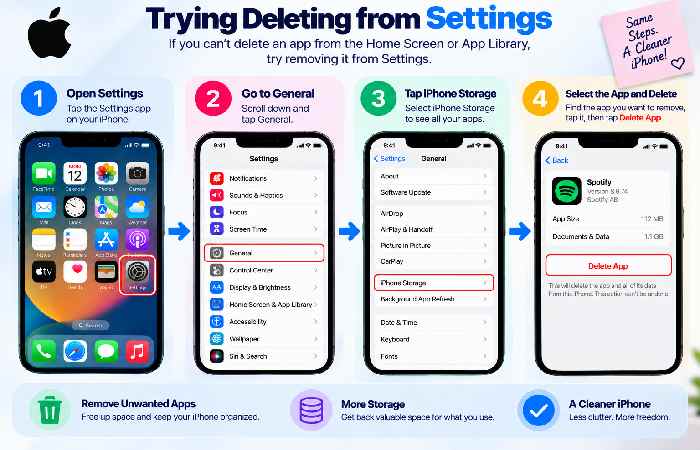
(iPhone Storage)Your iPhone may refuse to allow the deletion of apps on your home screen, therefore you can try removing them through Settings:Go to Settings -> General -> iPhone Storage. Locate the application on the list (sorted from largest to smallest capacity usage) and tap it to open it’s page.
Click Delete App and then confirm by tapping ‘Delete App’ again. This is also one of the best ways to see which apps are hogging space on your iPhone, before proceeding with deletion.
3. Making sure to select ‘Delete app’While pressing and holding the app
you wish to delete, your iPhone will provide three options to pick from: Remove App, Remove from Home Screen, or Delete App.
Only selecting ‘Remove from Home Screen’ merely takes the app off of the main screen and into the App Library.
Choose ‘Remove App’ or ‘Delete App’.
4. Reboot Your iPhoneA minor issue in your iPhone’s software
could be negatively affecting the processes running within your iPhone which might cause your apps to not be deletable. Simply restarting your iPhone is one of the best methods to get everything running smoothly again: Restart your iPhone, and then retry deleting the app. Restarting your phone doesn’t delete personal files.
5. Can this app be deleted on an iPhone?
If your previously failed methods don’t work, and your app remains invisible when trying to delete it, it may be one of the apps that has the possibility of not being delete able. For example, most apps like Mail, Safari or even Photos stock programs do not carry the feature of “delete” or maybe will only carry a restricted mode to delete them varying upon the system IOS version that it’s using.
6. Update Your iPhone SoftwareIf
you have an application that cannot be deleted even with the 5 preceding methods, you should check if you have an pending update to your IOS:Press Settings -> General -> Software Update and download and then install it.
7. Check your organization’s guidelinesIf
you are using your iPhone at school or if your parents own it or are a supervisor on your phone, your organization will possibly use a management profile, which can ban the deletion of applications that would hinder school work:Press Settings -> General -> VPN & Device Management. 7. 1 If there is a prompt on the top of this tab, then your phone may have limitations on deletion. Then, contact your organization for more data.
Quick Troubleshooting GuideHere is the quickest way to try resolving issues relating to apps that can’t be deleted on your iPhone:What is the issue?
How to resolve?
An app will not disappear from your screen?
Check your Screen Time features.
The app only disappeared, did not delete off your iPhone?
Make sure you select the ‘Delete app’ prompt.
An app removed itself and did not seem to have been deleted? Try deleting using iPhone Storage.
Your iPhone appears to be acting weirdly?
Restart your iPhone.I don’t see ‘Delete App’ prompt even for deletable apps? Try deleting through iPhone Storage.
Is your iPhone provided by your organization?
Confirm that your iPhone is not managed.
Is an app not deleted even after all attempts?
Try updating your software.
How do you delete an iPhone that won’t be removed?
Screen Time controls the ability to delete apps on your phone by either turning it on or off via Settings -> Screen Time -> Content & Privacy Restrictions -> iTunes & App Store Purchases -> Allow deleting Apps.
Why did my app disappear yet remain on my iPhone?
You may have chosen “Remove from home screen” instead of deleting the app entirely which is a similar prompt that will take your app to another space within your phone and not remove the app completely off of your device. How do I remove an app on my iPhone on Storage? Open the Settings on your device -> Go to General -> then to iPhone Storage, you will see a list of the apps installed on your device, by largest size to smallest.
Tap the app and tap ‘delete app’. Is a function called ‘offload app’ the same as deleting an app? No, the function only allows the app to remain on the storage, but takes up no space.
It only removes the functionality of the app.
It allows it to be kept along with other documents, for example the data associated to your app or you pictures which go to the icloud. To Conclude: Use these steps to first, test that your Screen Time restrictions will allow you to delete an app on your iPhone before removing it using the iPhone Storage setting if necessary. Restarting and updating the iPhone’s operating system could resolve your issue. Be aware of restrictions if your phone is controlled by organization.
When deciding between deleting the app and “offloading”, choose offload if you wish to recover memory while keeping information handy for later re-installations of the app.